

‹ DASHBOARD
 +
+ DASHBOARD+ LAUNCHER
Online catalogue · Help centre · Store 2.1.64 · Launcher 0.48
+DASHBOARD+ LAUNCHERDASHBOARD Guide
Every screen of DASHBOARD, COMPACT, LAUNCHER and HUD — explained with real screenshots from a Lynk & Co 900, step-by-step how-tos, every setting and answers to the questions owners ask most.
🔍 Tap any screenshot to see it large.
Four parts, one cockpit
DASHBOARD is a complete layer on top of the car’s own system. Pick the part you want to learn — or search above.

Your first five minutes
- Open DASHBOARD from the car’s app list — the main page (Full mode) appears.
- Tap RU / EN to choose the language, and Aa if you want larger text.
- Install an app: open its page → Install → choose Show this app on Driver, Passenger or Rear.
- Tap Launcher for the full-width home screen — orbit menu, docks, cameras and car settings in windows.
- Set up the HUD: Launcher → orbit HUD → size, position and road type.
The store + cockpit
DASHBOARD
Main page (Full mode)
The complete store: everything DASHBOARD can do starts here.
- Left menu: Recommended, Navigation, Car & service, Music & radio, Video & TV, Games, Storage, Wallpapers, Multi-view, BookLab library, Owner’s manual, Settings.
- Microphone tile (voice) and compass tile at top-left.
- Fast Track: one-tap favourites — Navigator, Music, Maps, Radio.
- Search apps, Aa large text, Compact mode and the Launcher button.
- Side panel: Profile, Messages, Call, Shop, Calendar, News, Settings, Info, Car — and a rotating info card.
- Top ribbon: “Powered by ITIPS”, date, time and live weather.
💡 Tap Aa any time the text feels small; tap it again to return.
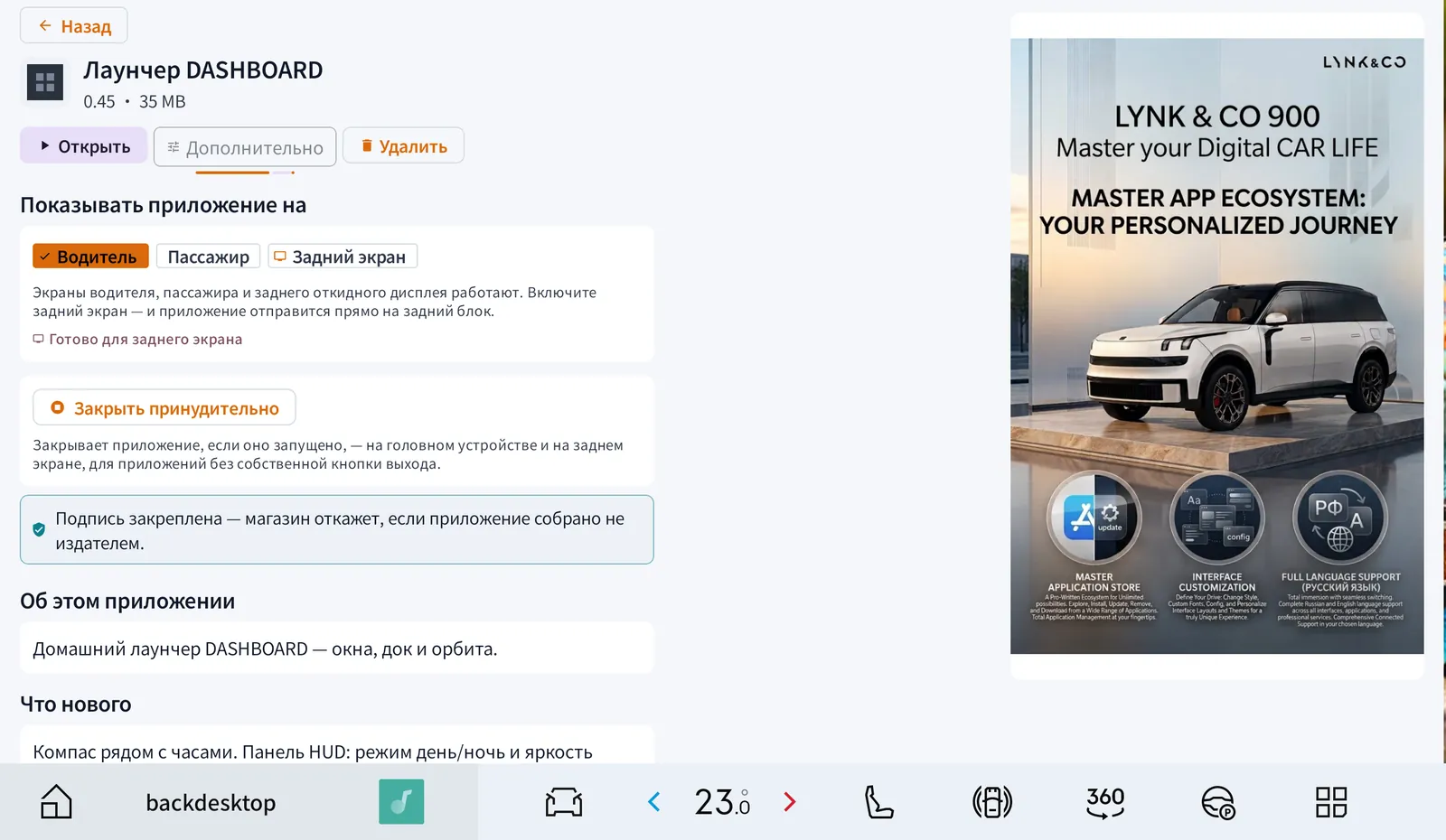
App page — install, open, choose the screen
Every catalogue app has its own page with everything you can do with it.
How to- Find the app in the menu or with Search and tap it.
- Tap Install — it installs silently, with no “unknown sources” warning. Then Open.
- Under Show this app on choose Driver, Passenger or Rear screen.
- If an app has no exit button, use Force close — it closes on the head unit and the rear screen.
- Signature pinned: the store refuses an app that was not built by its publisher.
- Details: version, installed, size, package — “Supplied by ITIPS — verified and hosted by us”.
- Advanced opens Troubleshoot after a 3-second hold (see App Doctor).

Passenger and rear screens
The 900 has a main display (driver + front passenger) and a separate rear flip-down screen. DASHBOARD treats them as one cockpit.
How to- Turn the rear screen on.
- Settings → Check rear screen — it should say Reachable.
- Open the app’s page → Show this app on → Rear screen. The app is sent to the rear unit over the car’s internal network.
- For the front passenger choose Passenger — they also get a Passenger Apps tab in Storage.
💡 No extra subscription is needed for the back seat.
Multi-view — 2 or 3 apps on one screen
Navigation stays in view while you listen to music or radio, or browse.
How to- Menu → Multi-view.
- Tap a one-tap layout: Navigator + Music, + Radio, + Browser or Navigator + Music + Radio.
- Or Choose your own: Left, Right and an optional Third app; left width 50 / 60 / 70 %.
- Tap Show 2 apps; Swap sides if you want them the other way round.
- Drag the orange divider on the screen to resize; switch Multi-view OFF to return to one app.
💡 A “Tip of the day” with driving advice appears on this page.


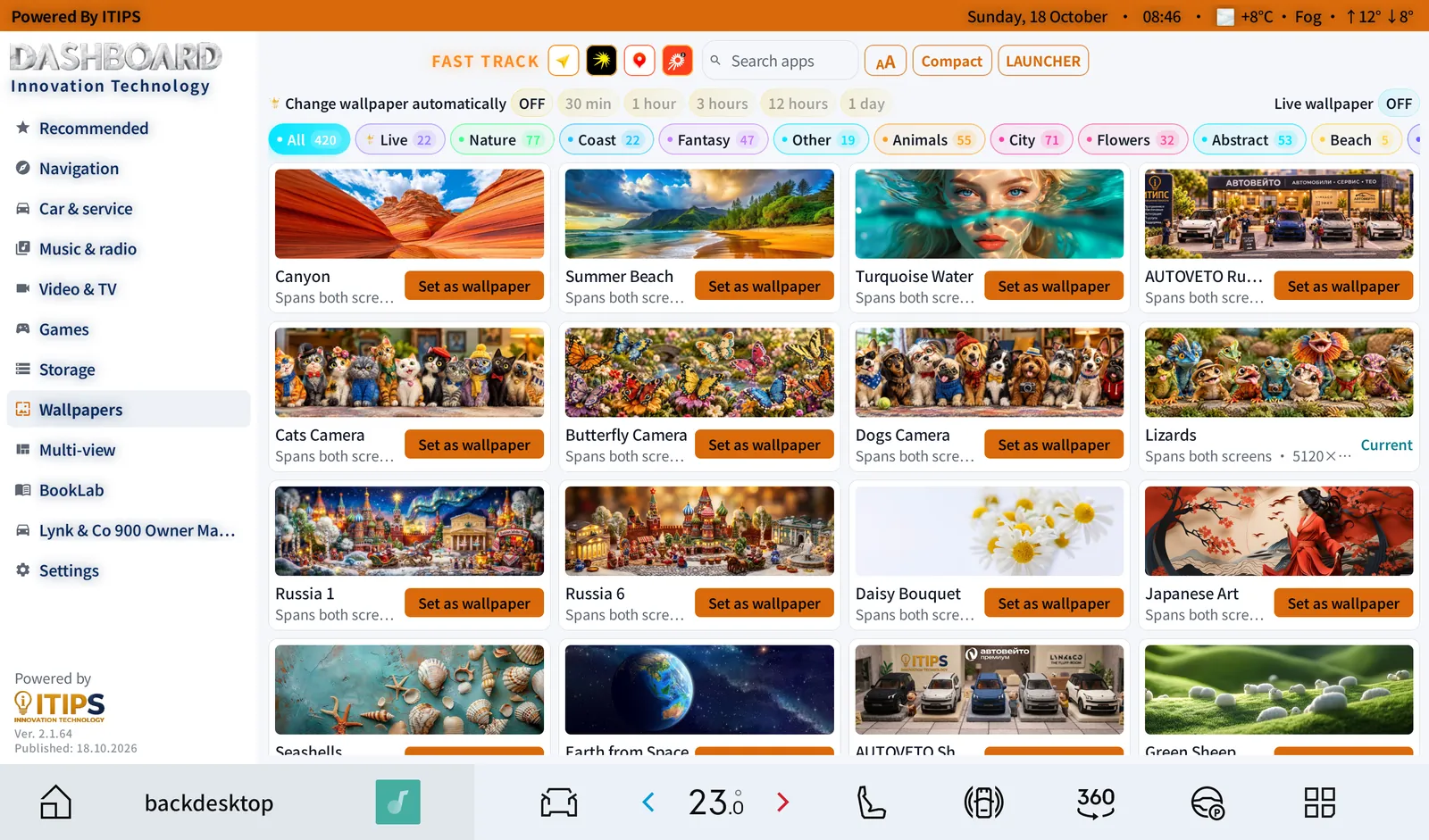
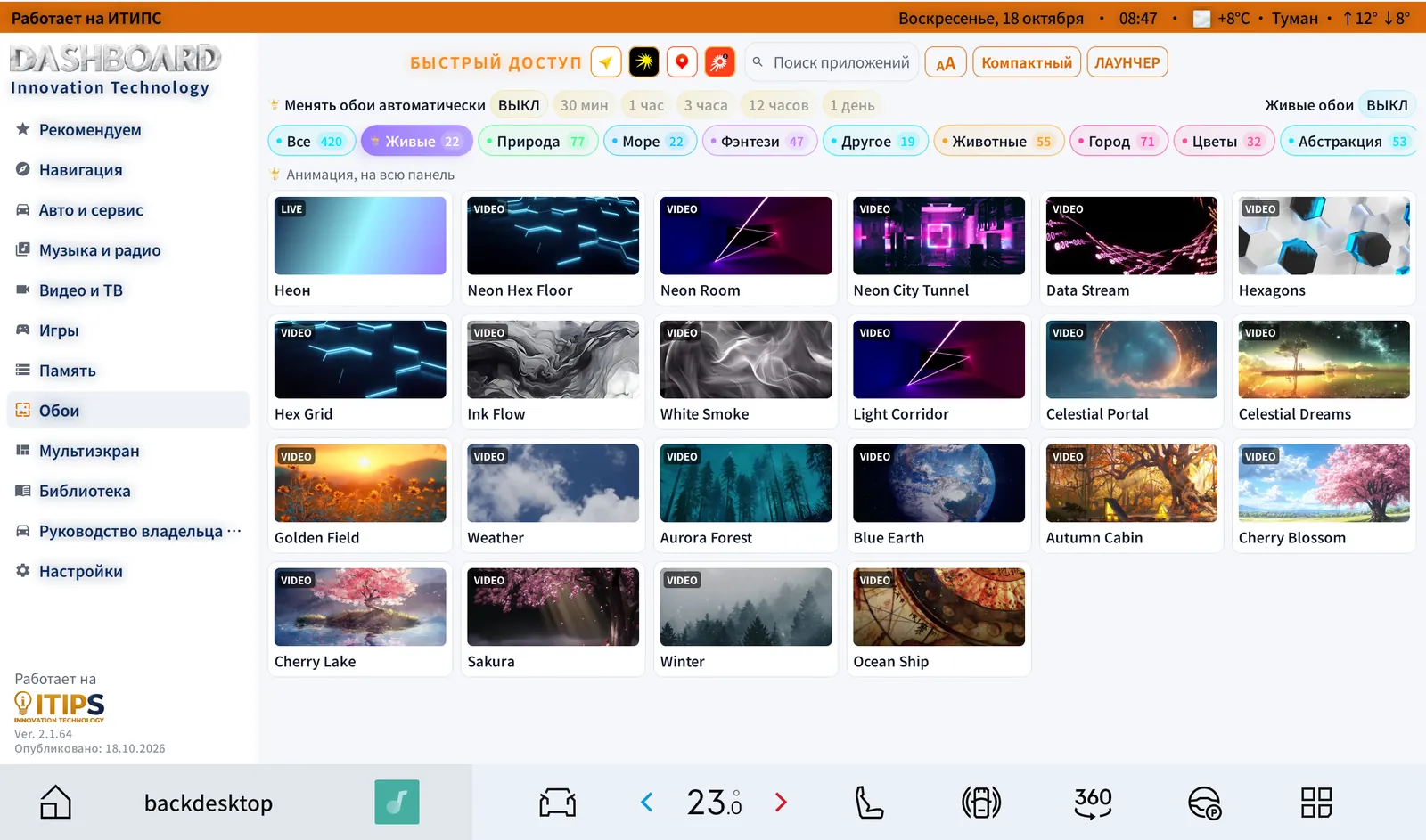
Wallpapers — 420+ designs, 22 live
Wallpapers made at the cockpit’s exact 5120 × 1600 size — one seamless image across driver and passenger.
How to- Menu → Wallpapers and pick a category chip (All, Live, Nature, Coast, Fantasy, Animals, City, Flowers, Abstract, Beach…).
- Tap Set as wallpaper under the one you like — the current one is marked Current.
- To rotate: Change wallpaper automatically → 30 min, 1 h, 3 h, 12 h or 1 day.
- For motion: choose Live and switch Live wallpaper ON.
💡 Live wallpapers and automatic change are part of VIP. You can also change wallpaper from the Launcher’s orbit menu or by saying «обои».
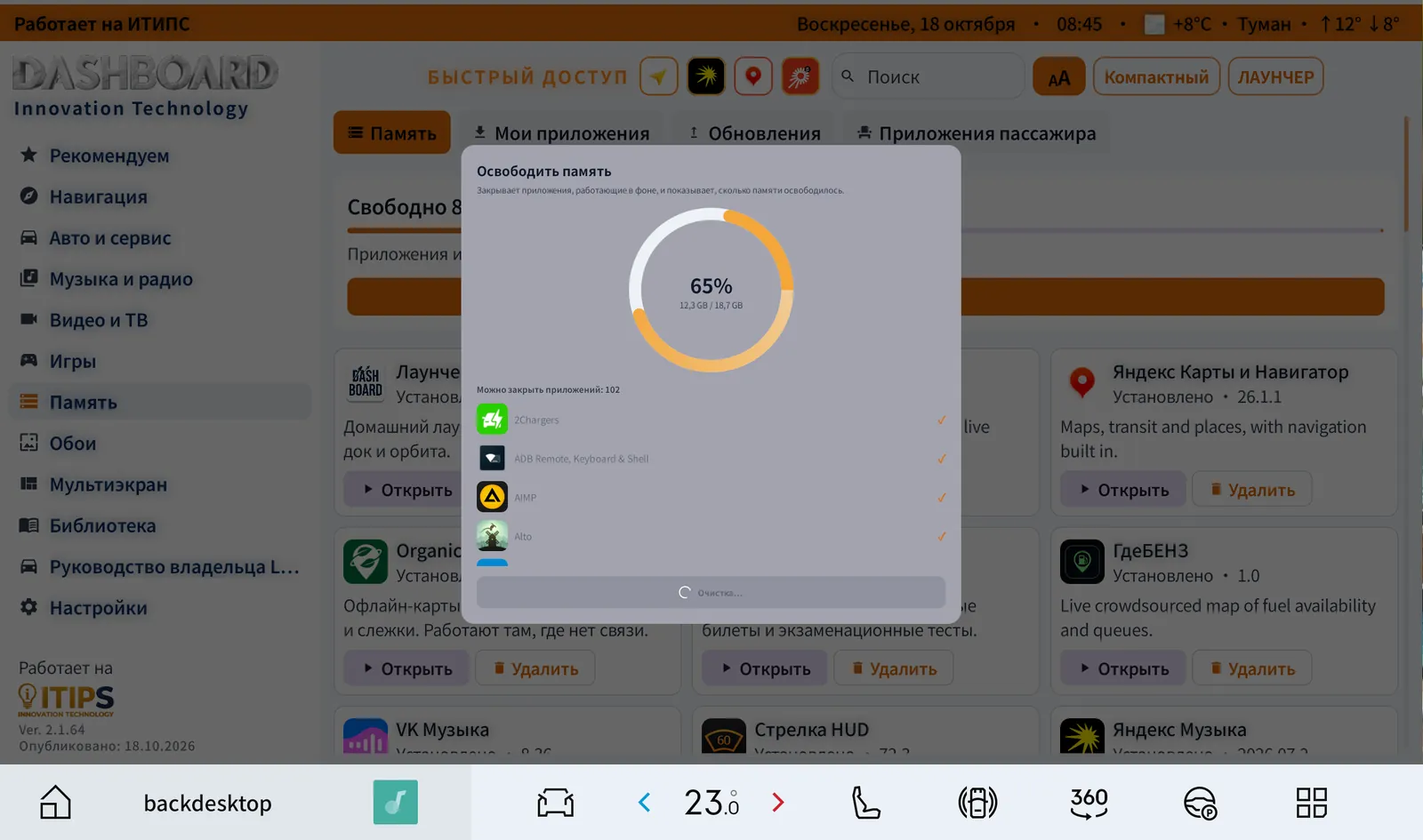
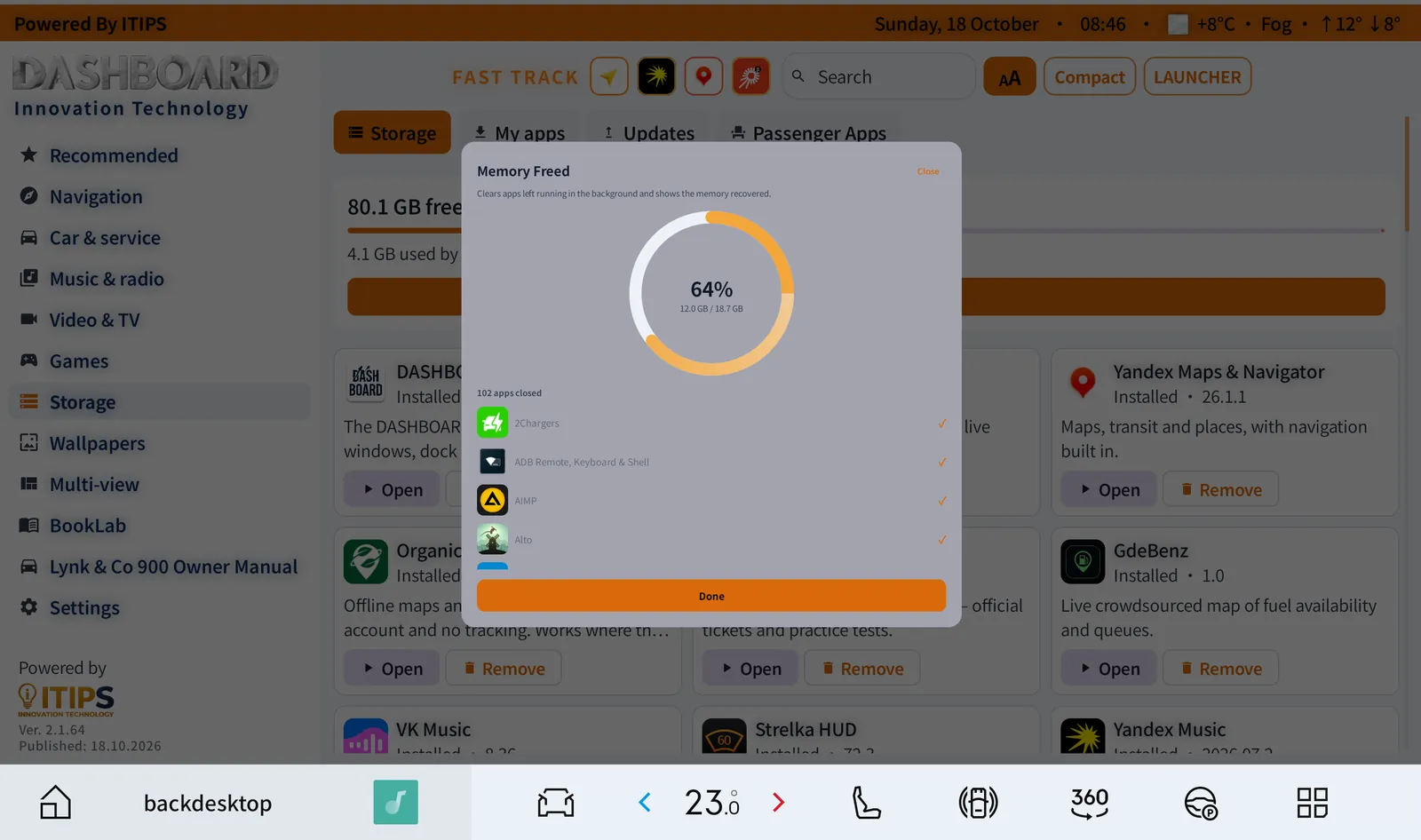
Free up memory
Closes the apps left running in the background so the head unit stays fast.
How to- Tap Free up memory — on the Storage page, in the Compact quick-action bar or in the Launcher dock.
- Check the gauge and the list, then tap Free Up Memory.
- Wait for the ticks, then tap Done.
💡 Navigation and the apps you are using are not touched, and no data is deleted.

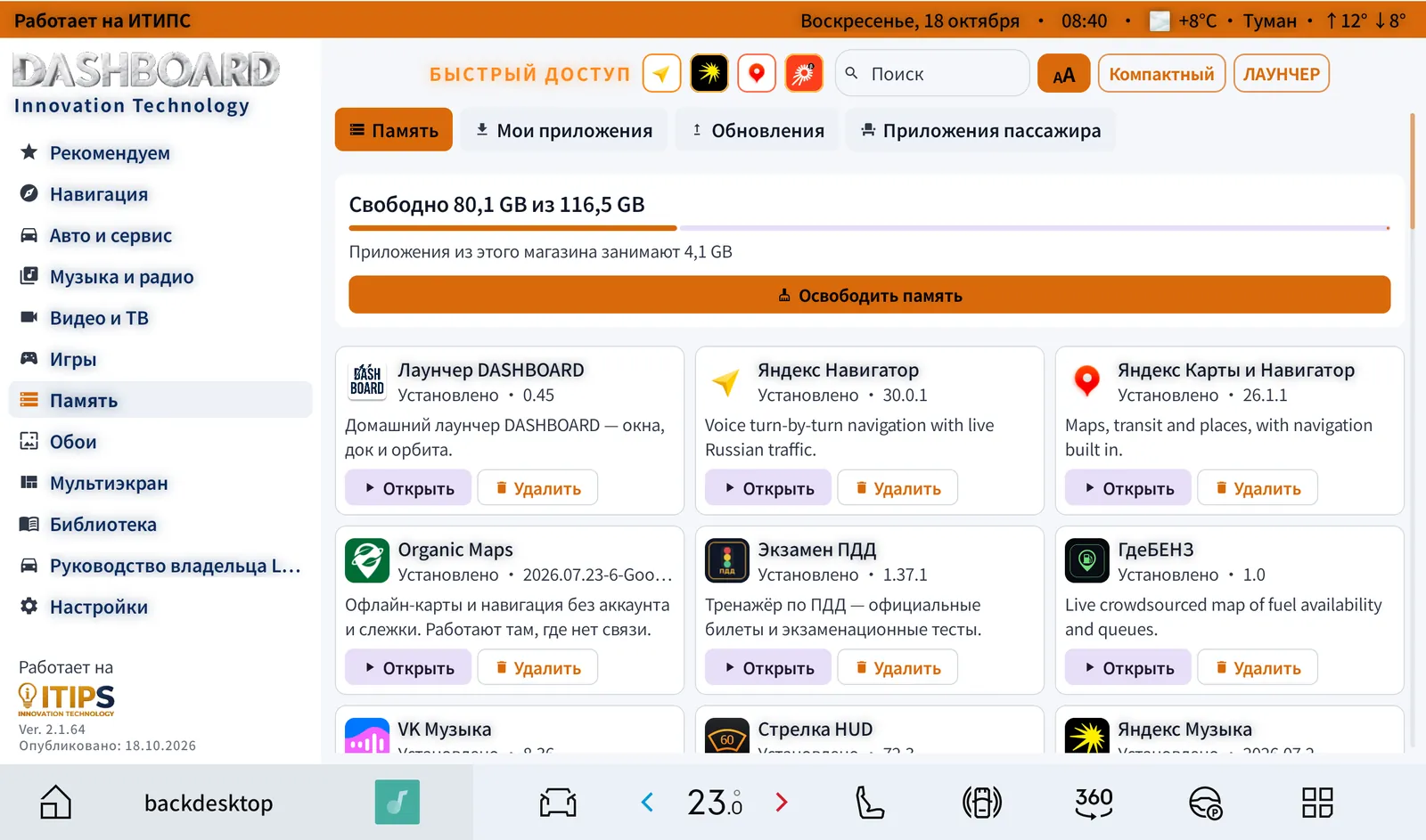
Storage — space and your apps
See how much space is free and manage every installed app.
- Free space of total (e.g. 80.1 GB free of 116.5 GB) and how much the DASHBOARD apps use.
- Tabs My apps · Updates · Passenger Apps, with Open / Remove on every app.
- A warning appears when storage is nearly full.
💡 Storage manages apps and space; DASHBOARD does not include a general file browser.
App Doctor & Troubleshoot
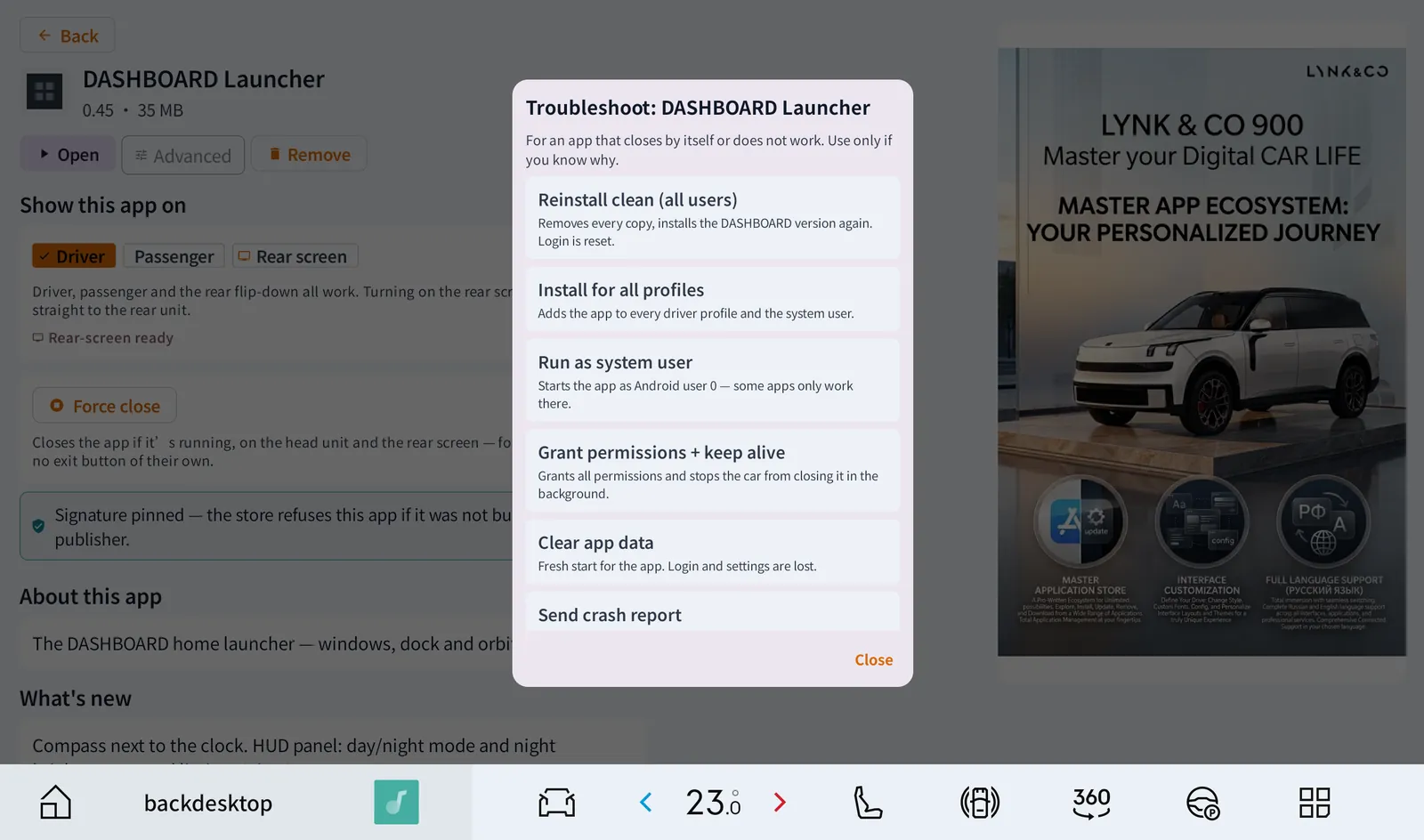
Automatic: each time the catalogue loads, App Doctor checks every installed catalogue app — installed from a foreign source, a modified build, or a foreign version that blocks updates. It shows a Doctor card on the main page with one-tap Repair; apps without login data are repaired automatically.
How to- Open the app’s page.
- Press and hold Advanced for 3 seconds (so it can’t be pressed by accident while driving).
- Choose a tool. Try them in this order: Grant permissions + keep alive → Install for all profiles → Reinstall clean.
- Reinstall clean (all users) — removes every copy and installs the DASHBOARD version again (asks first; the login is reset).
- Install for all profiles — adds the app to every driver profile and the system user.
- Run as system user — starts the app as Android user 0; some apps only work there.
- Grant permissions + keep alive — grants every permission and stops the car from closing the app in the background.
- Clear app data — a fresh start (asks first).
- Send crash report — records 25 s of diagnostics and sends them securely to ITIPS support.
💡 App Doctor repairs catalogue apps — the apps DASHBOARD supplies.
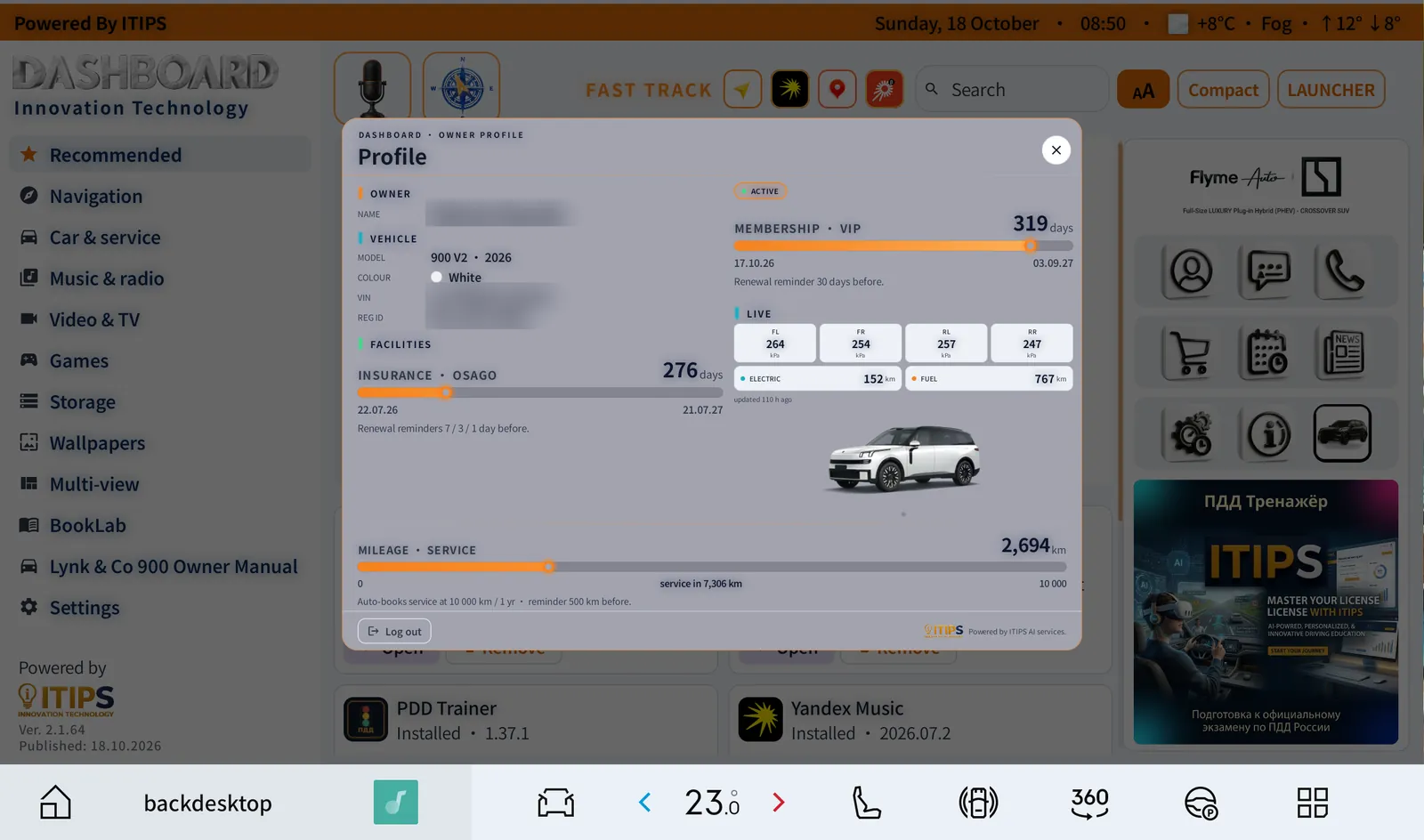
Owner profile & reminders
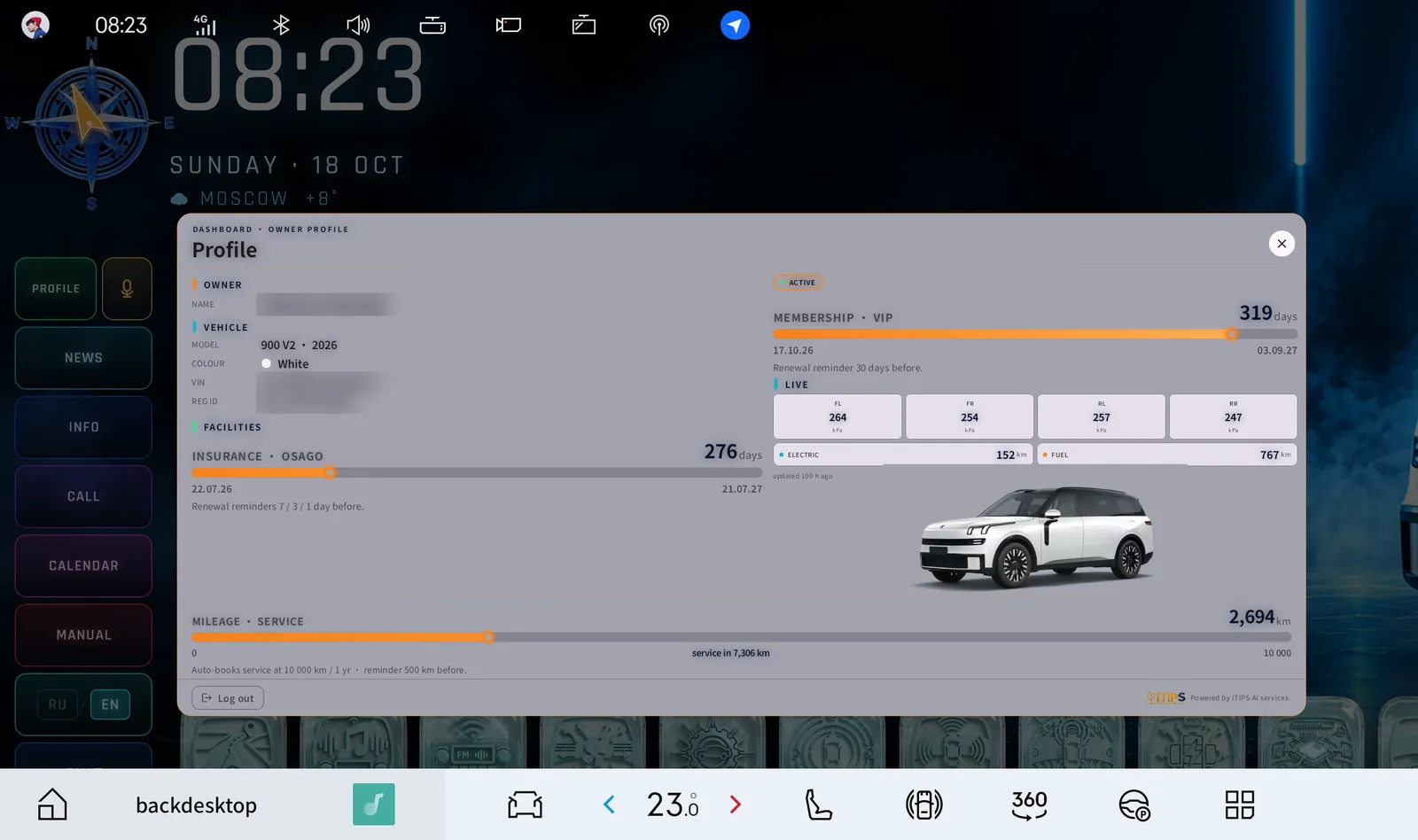
One card with you and your car. Open it from the side panel (Profile) or the Launcher’s left rail.
- Owner and vehicle — model, year, paint colour, VIN, registration ID.
- Membership with days left; a renewal reminder 30 days before.
- Insurance (OSAGO) with days left; reminders 7 / 3 / 1 day before.
- Live car data: tyre pressures (FL / FR / RL / RR), electric and fuel range.
- Mileage & service: odometer and next service — every 10 000 km / 1 year, reminder 500 km before.
- Log out at the bottom.
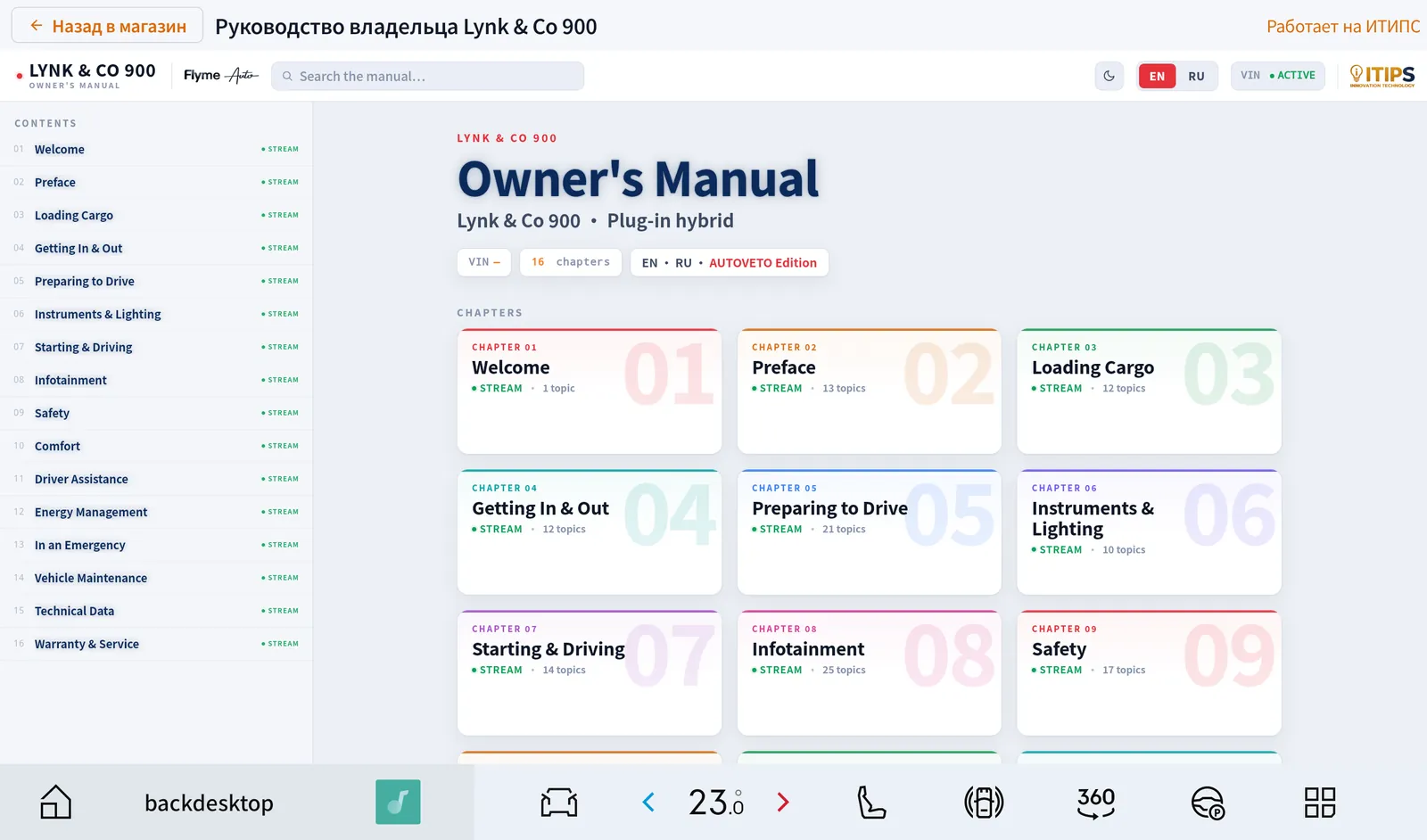
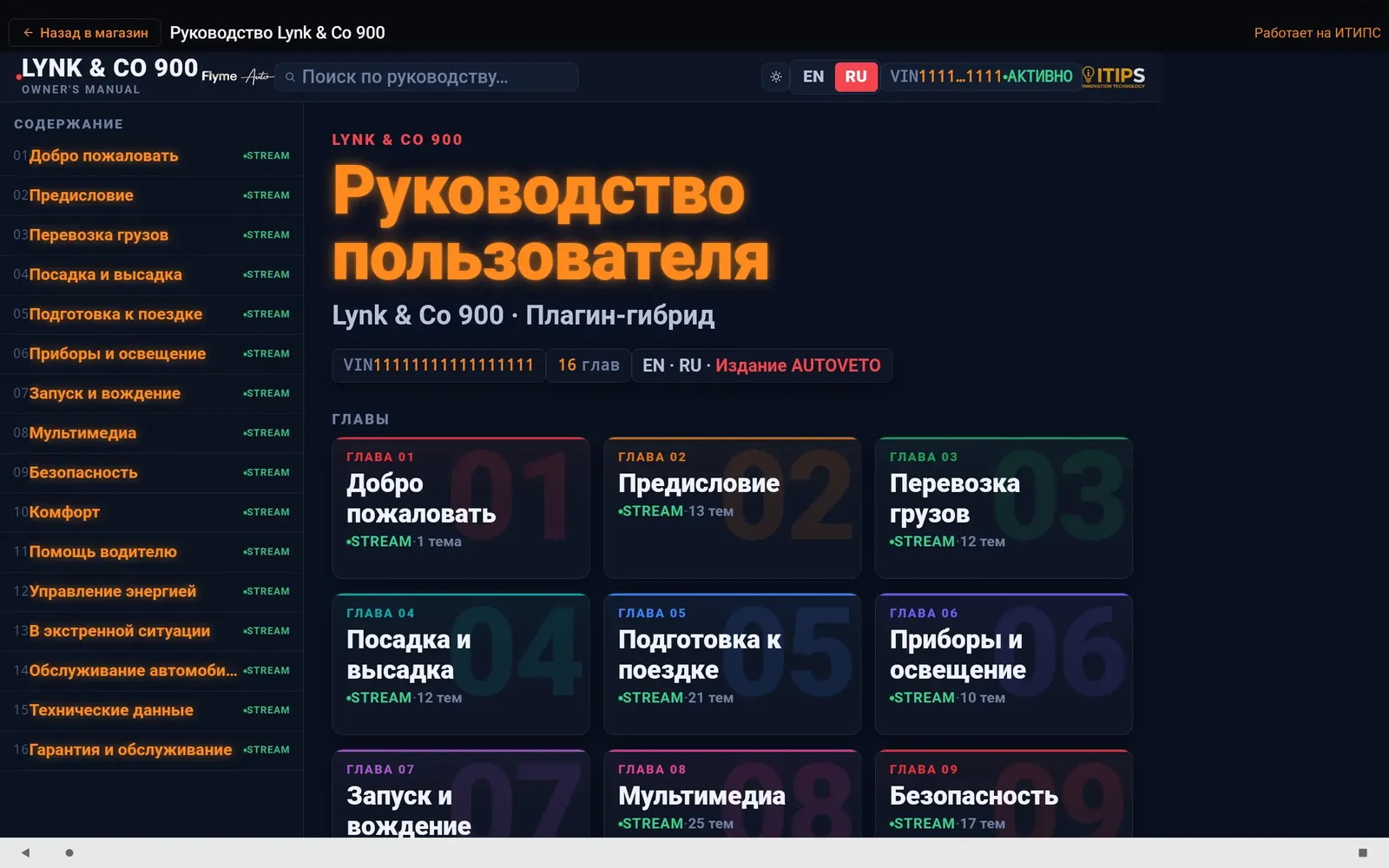
Owner’s manual — 16 chapters, EN ⇄ RU
The full Lynk & Co 900 Owner’s Manual (plug-in hybrid), translated and searchable — from Welcome and Loading Cargo to Driver Assistance, Energy Management, In an Emergency, Technical Data and Warranty & Service.
How to- Open it: Menu → Owner’s manual, the Manual tile in Compact, or Manual on the Launcher’s left rail.
- Tap a chapter, then a topic.
- Switch EN / RU at the top; use Search the manual to jump straight to a topic.
- Change between light and dark with the theme button.
💡 From the Launcher the manual opens as a window — you can keep it next to the map.

Voice — offline, Russian and English
Push-to-talk: tap the microphone (Store tile, Compact bar or Launcher rail) and speak. Recognition runs on the car, offline.
- «Позвони …» / “Call …”, «Позвони дилеру», emergency «112».
- «Маршрут до …» / “Navigate to …” — the address goes to the navigator.
- «Открой Яндекс Музыку», «Включи радио», «Открой YouTube / Кинопоиск / 2ГИС …».
- «Календарь», «Сообщения», «Новости», «Профиль», «Настройки», «Руководство», «Обои», «Обновления», «Главная».
- «Что ты умеешь?» / “What can you do?” — lists the commands.
💡 Calls go through the car’s phone connection.
The 900 Boutique (preview)
A member boutique curated for your exact car, with prices in ₽ and a basket, prepared together with our service partner AUTOVETO. Open it from the side panel (Shop) or say «покупки».
💡 Preview: ordering opens soon — no card is ever entered in the car.

BookLab — the library
A curated library of classic books in careful translation — poetry, philosophy, culture and history — to read on the big screen while parked or charging. Menu → BookLab.
Updates — over the air
DASHBOARD, the Launcher and every catalogue app update over the air. The car checks whenever the Store opens online and can update automatically while parked.
How to- Updates come by themselves — an update card with release notes appears on the main page.
- To check right now: Settings → About → Check now (and Update launcher if offered).
- Turn Automatic updates while parked on in Settings.

Calm mode for the road
COMPACT
Compact mode
A calm, big-button home for everyday driving.
How to- On the main page tap Compact.
- To return to the full store tap Full at the top-right.
- The DASHBOARD wordmark and your car render in its real paint colour.
- A large live compass beside the car.
- Fast Track strip — Navigator, Music, Maps, Radio.
- Quick actions: split 2 / split 3 / single, voice, Free up memory, shop, settings, info, profile, calendar, RU / EN.
- One row with every suite app plus Wallpapers, Manual and Launcher.
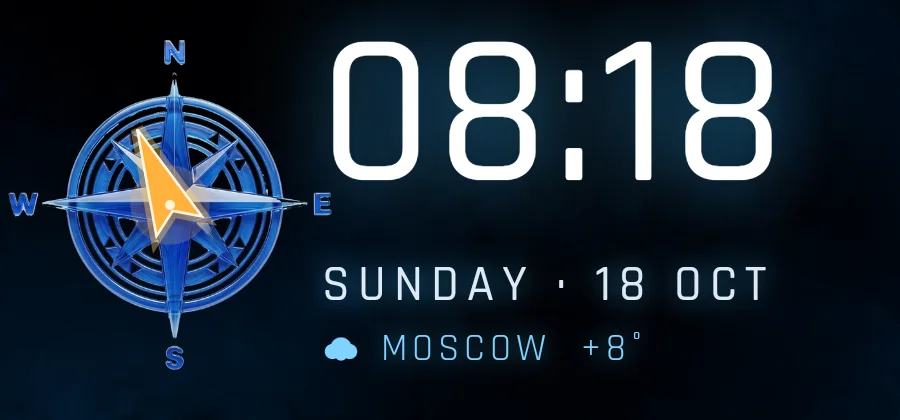
Live compass
Shows where the car is actually heading — on the Store main page, the Compact screen, the Launcher home and on the HUD while driving.
- The rose stays north-up; an amber arrow turns to the car’s heading.
- The heading comes from the car’s GPS track while driving forward above ~10 km/h — not from a magnetic sensor.
- When the car stops, the arrow holds the last driving direction.
💡 No arrow yet? After a new installation drive forward a few hundred metres — the arrow then appears and is remembered.
Home screen for 5120 × 1600
LAUNCHER
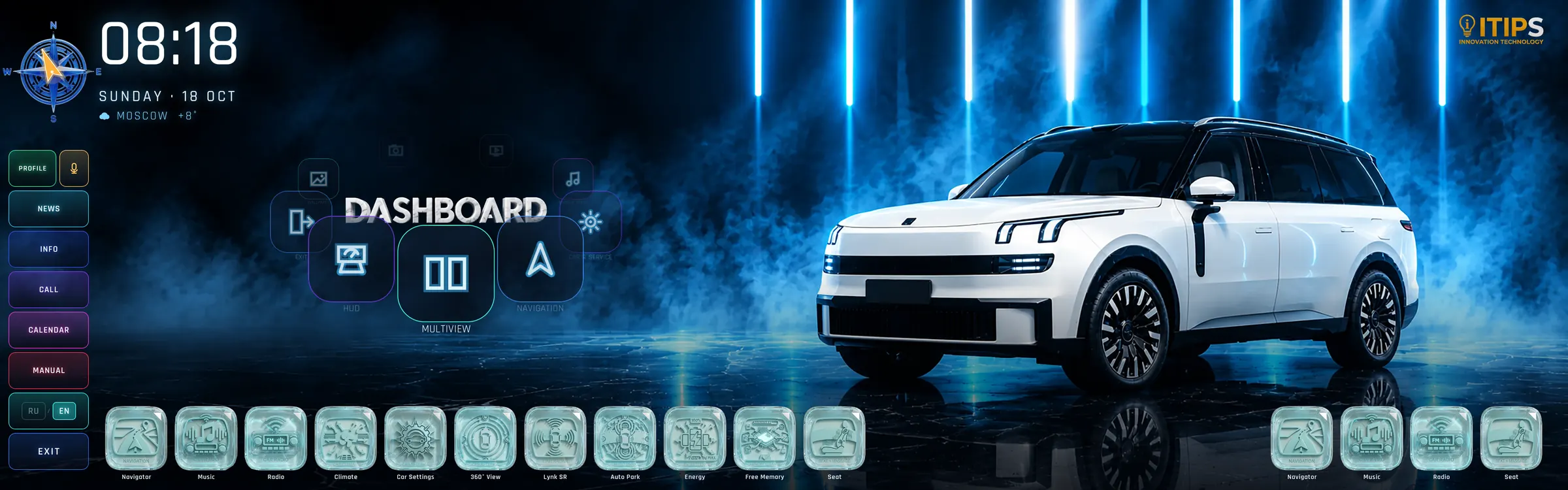
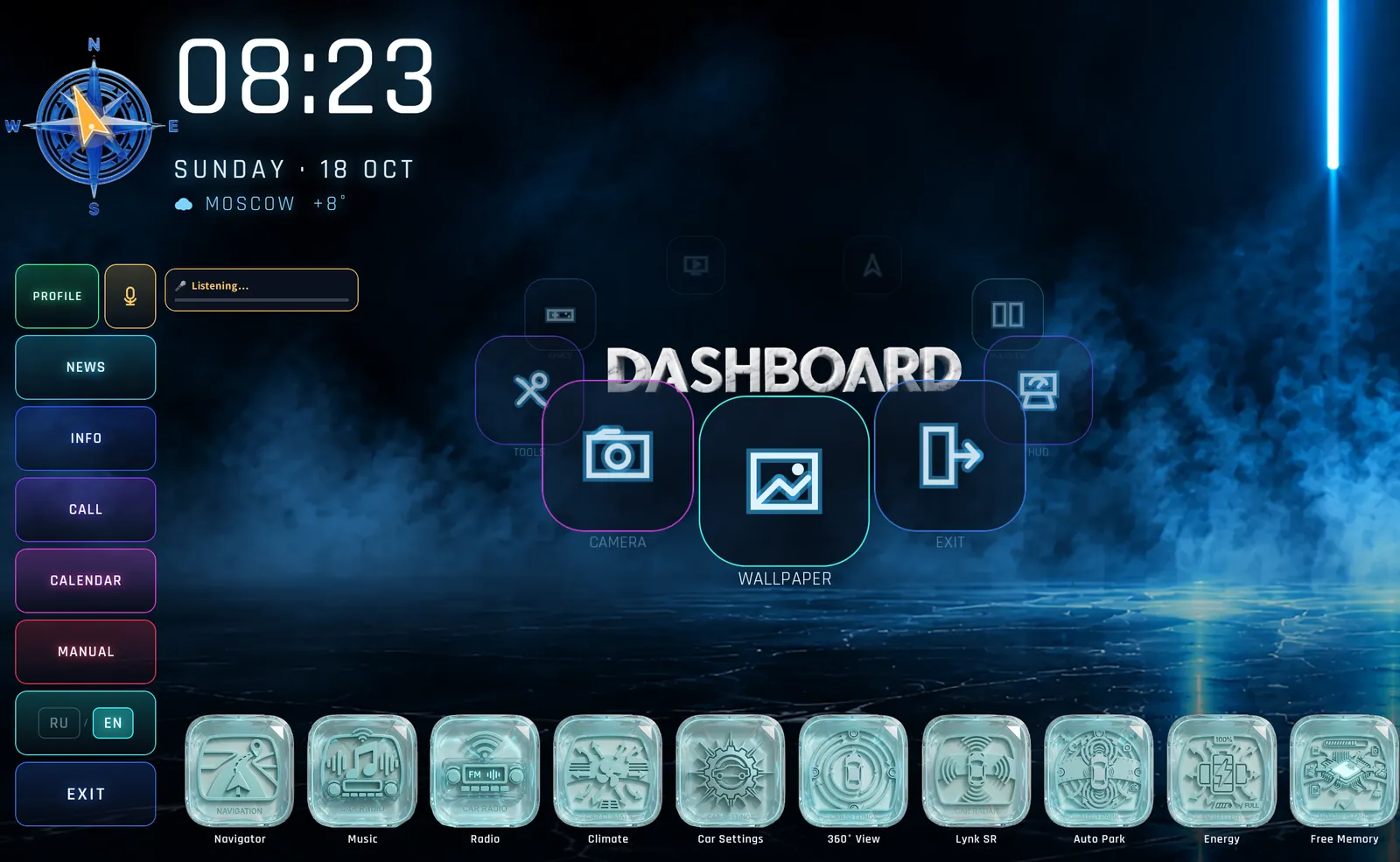
Launcher home screen
The full-width home screen made for the 5120 × 1600 display. Open it with the Launcher button in the Store or Compact.
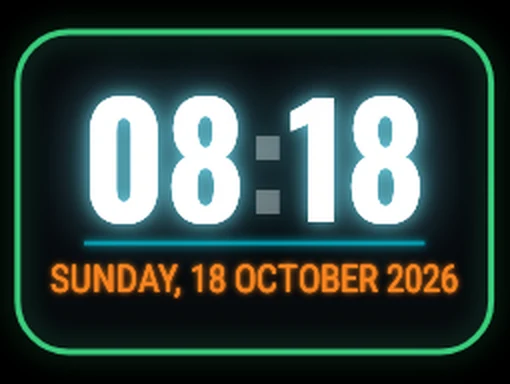
- Top-left: clock, date, weather and the large compass; ITIPS mark top-right.
- Left rail: Profile · Microphone · News · Info · Call · Calendar · Manual · RU / EN · Exit.
- Orbit menu around the DASHBOARD mark: HUD · Multiview · Navigation · Car & service · Music & radio · Video & TV · Games · Tools · Camera · Wallpaper · Exit — spin it and tap the centre item.
- Driver dock: Navigator · Music · Radio · Climate · Car Settings · 360° View · Lynk SR · Auto Park · Energy · Free Memory · Seat.
- Passenger dock (right): Navigator · Music · Radio · Seat.
💡 Exit returns to the factory Flyme home in one tap — nothing is lost.
Floating windows
Every app opens in its own window with a title bar — several at once.
How to- Open an app from a dock or the orbit menu.
- Drag the title bar to move the window anywhere.
- Tap – to minimize, × to close.

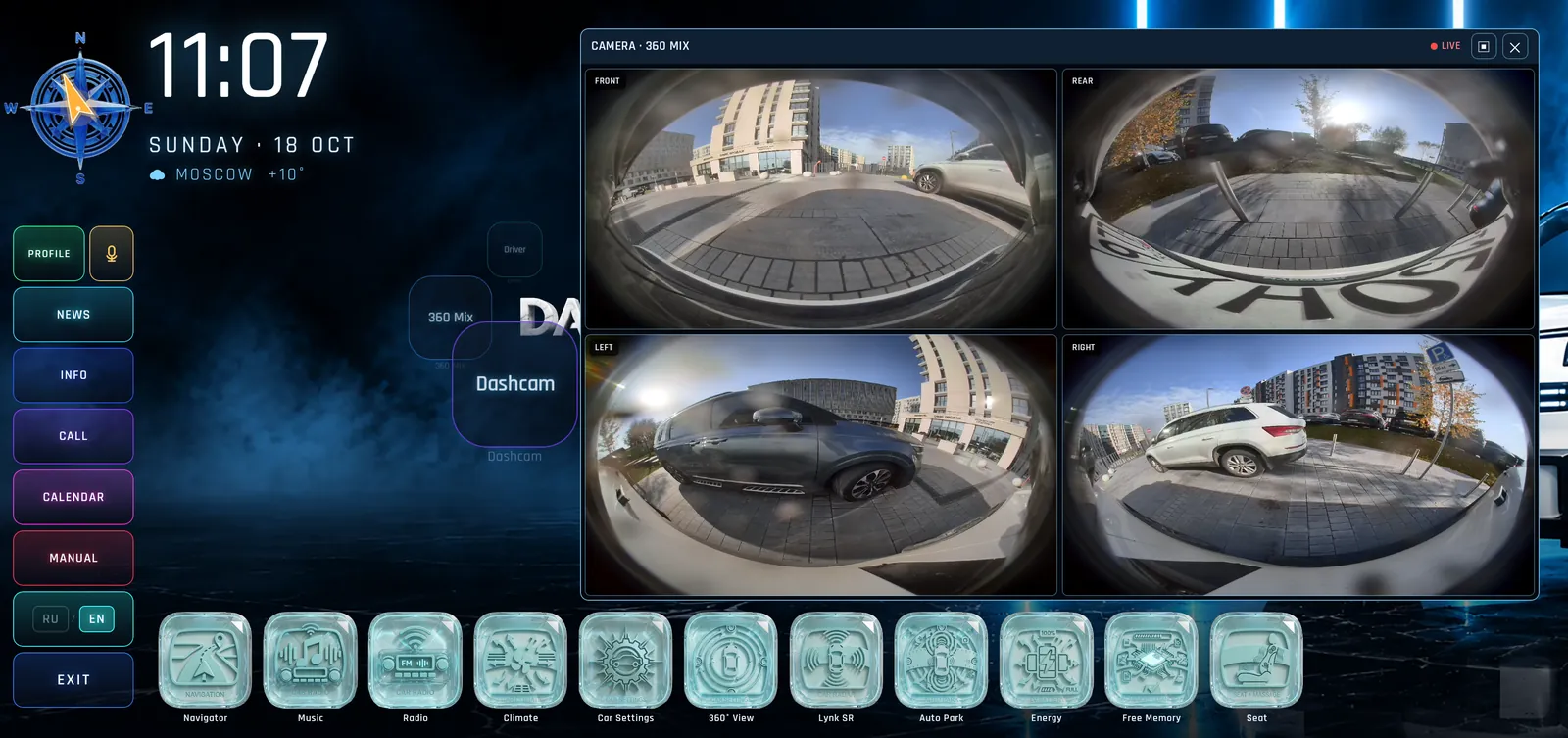
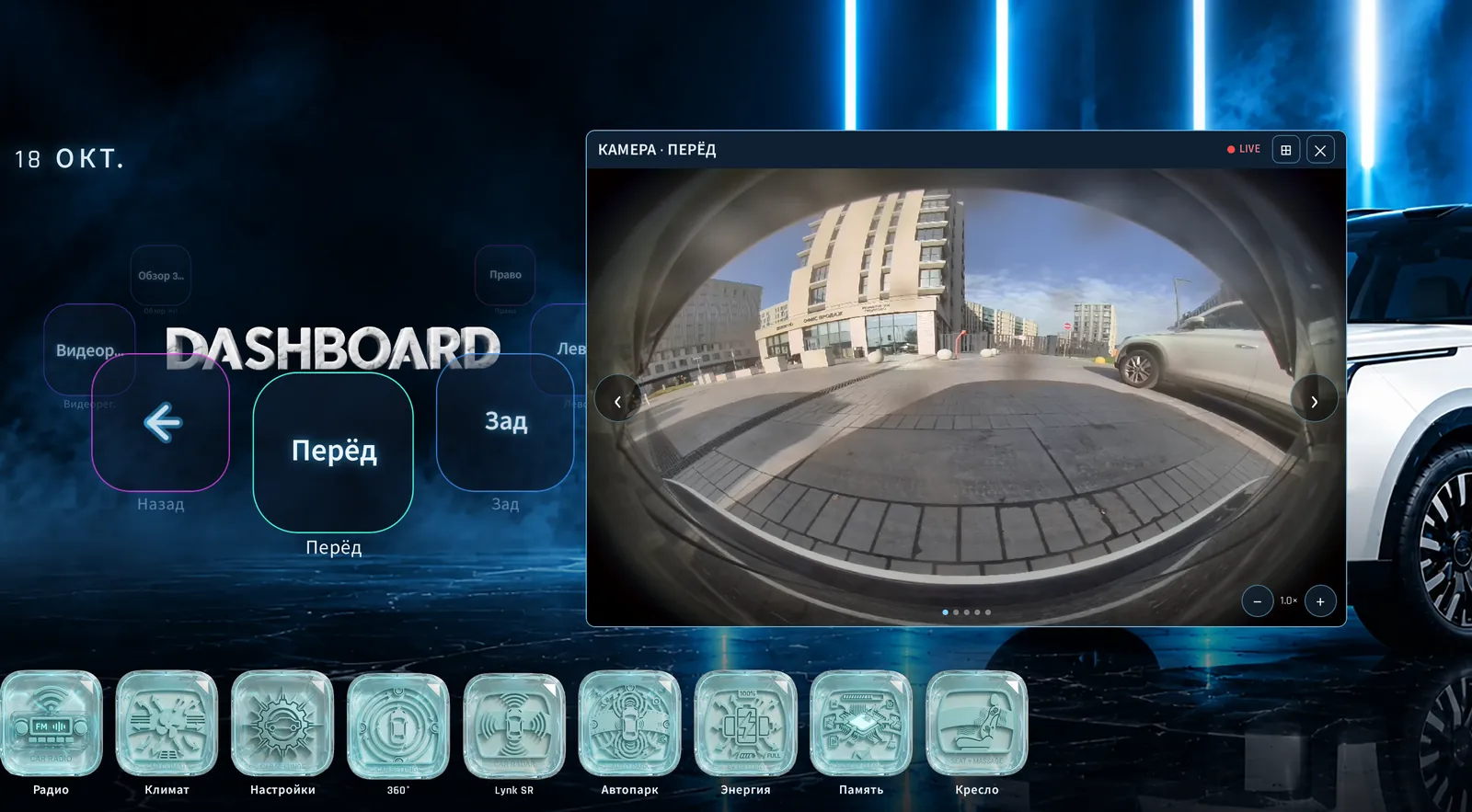
Cameras — single, 360 Mix, Dashcam, Driver
Every camera of the car, live, from the Launcher home screen.
How to- Orbit menu → Camera. A second ring appears: Front · Rear · Left · Right · Driver · 360 Mix · Dashcam.
- Tap a camera — it opens in a window with a red LIVE badge.
- Use ‹ › to step through the cameras and – / + to zoom.
- Tap the grid button or choose 360 Mix to see all four surround cameras at once.
- Move, minimize or close the window like any other.
💡 A stitched bird’s-eye 360° view is on the roadmap.
Car settings, Energy, Lynk SR in windows
The car’s own factory panels open as movable DASHBOARD windows — next to navigation instead of over it.
How to- Tap Car Settings, Energy, Lynk SR, Climate, Seat, Auto Park or 360° View in the driver dock.
- Change what you need — pages on the left: Shortcut, Car control, Driving, Lights, Driving assist, Voice, Display, Sound.
- Close the window with ×; your route stays on screen.
💡 Energy shows total range, electric and fuel range, battery and fuel %, trip statistics and smart energy management. If its labels appear in Chinese, set Flyme Display Language to Русский or English in Settings.


App shelves
Each orbit category — Navigation, Car & service, Music & radio, Video & TV, Games, Tools — opens a grid of its apps. Tap an app to open it in a window.
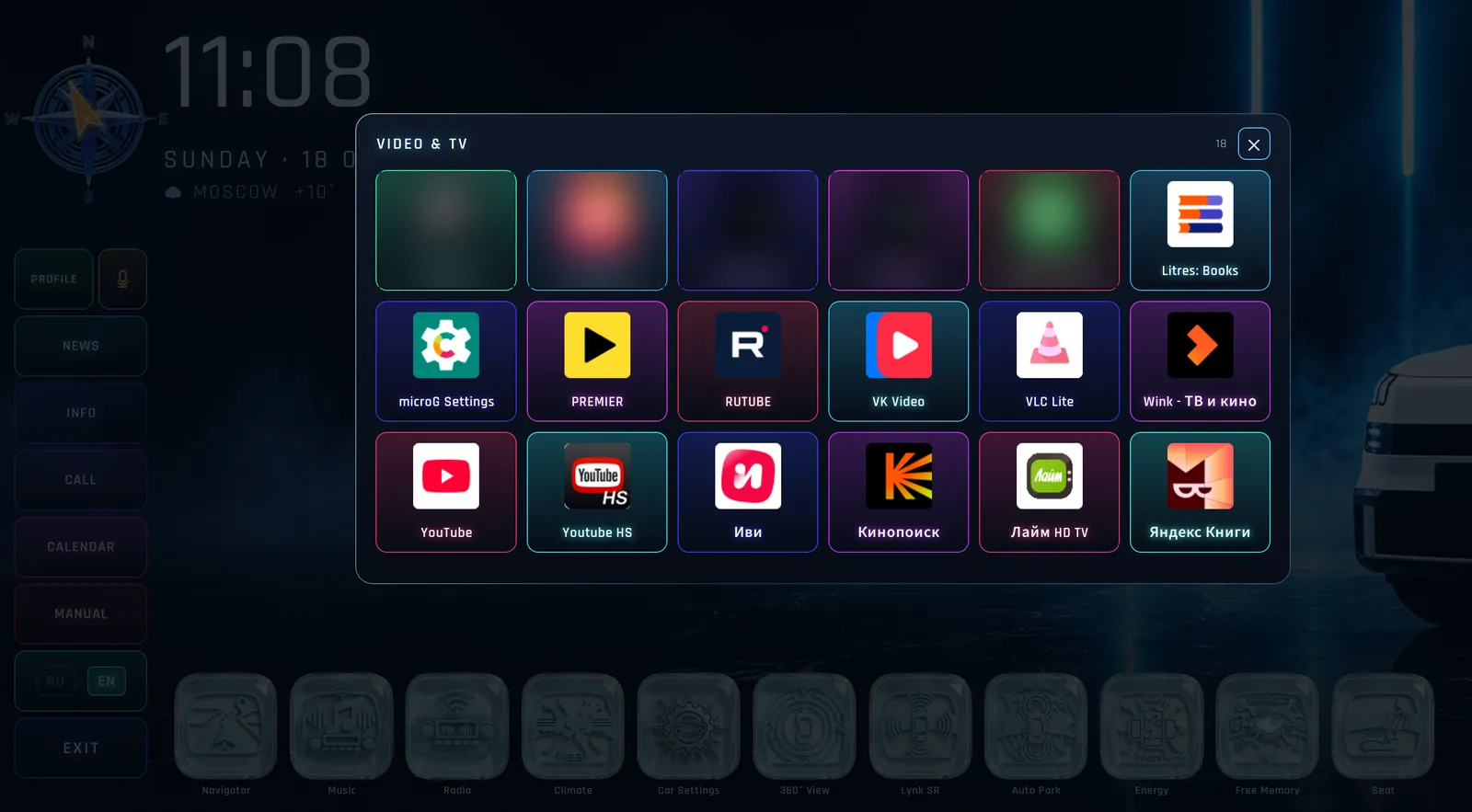
Wallpaper picker on the home screen
Orbit menu → Wallpaper: thumbnails grouped by category, right on the home screen — your apps keep running.

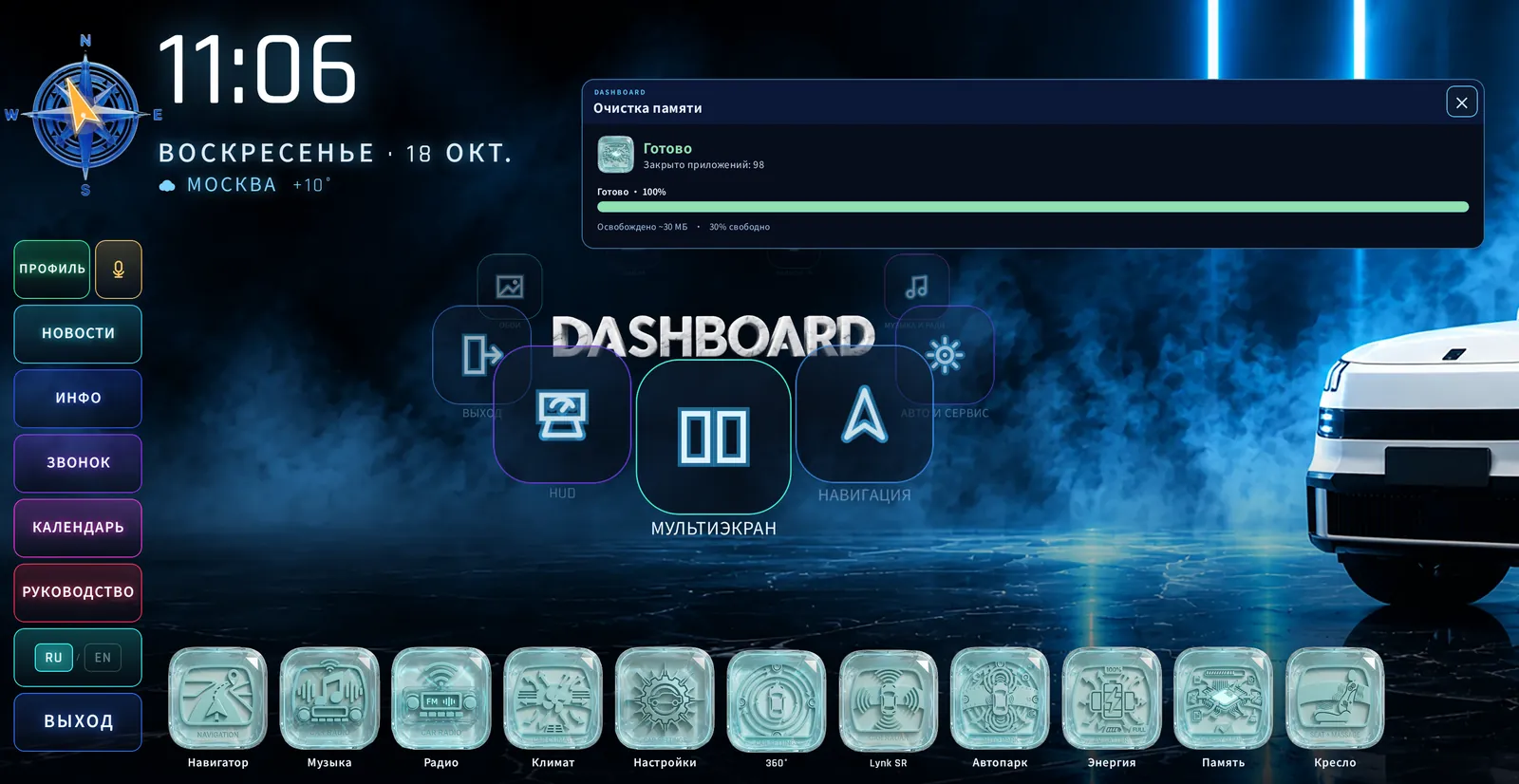
Free Memory from the dock
Tap Free Memory in the driver dock: a slim panel shows each app being closed, the progress and the memory freed.

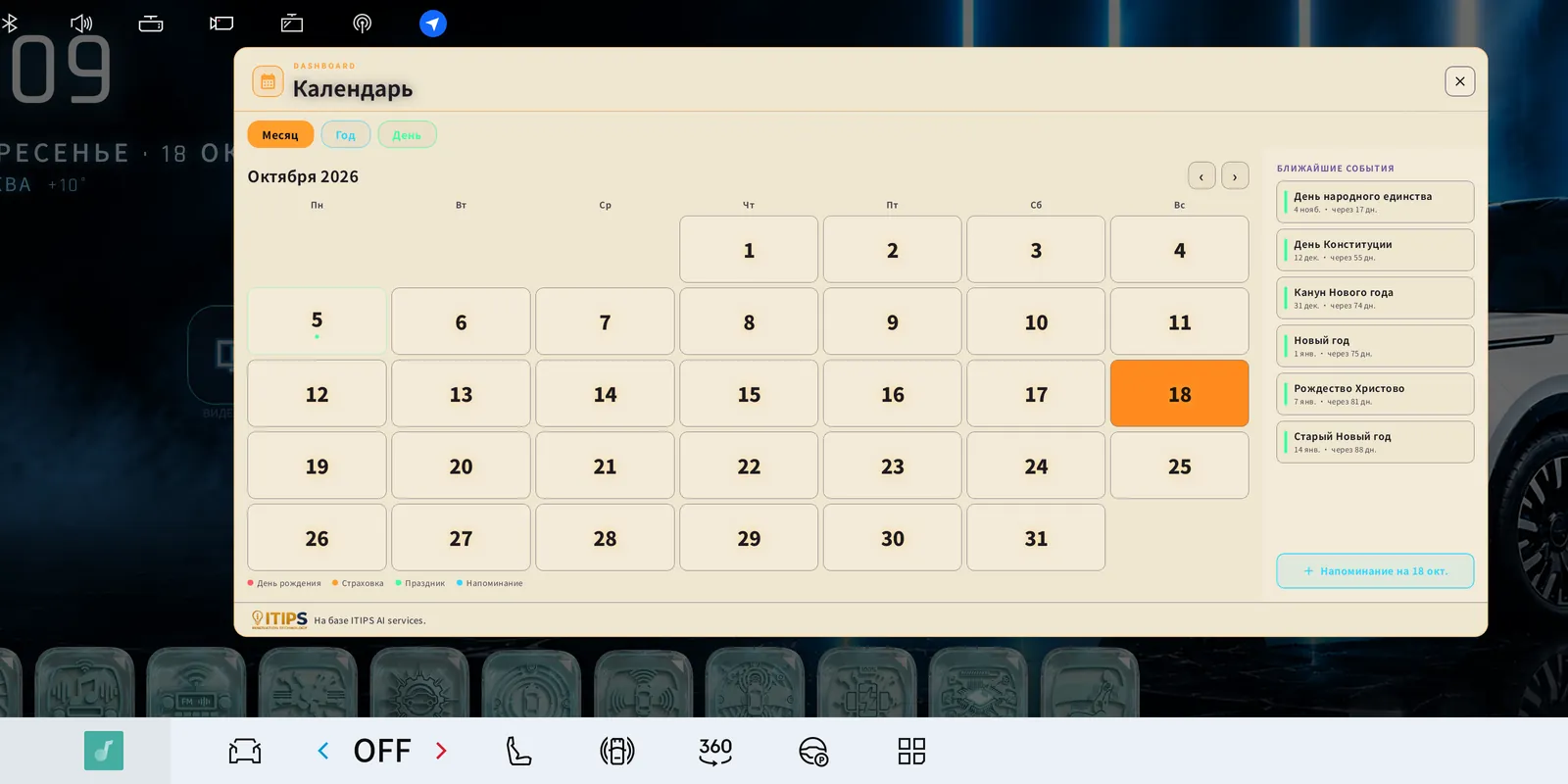
Calendar & reminders
Month, Year and Day views with public holidays, your insurance dates and birthdays, colour-coded (birthday · insurance · holiday · reminder).
How to- Launcher → Calendar (left rail).
- Pick a day.
- Tap + Reminder, type it and save.
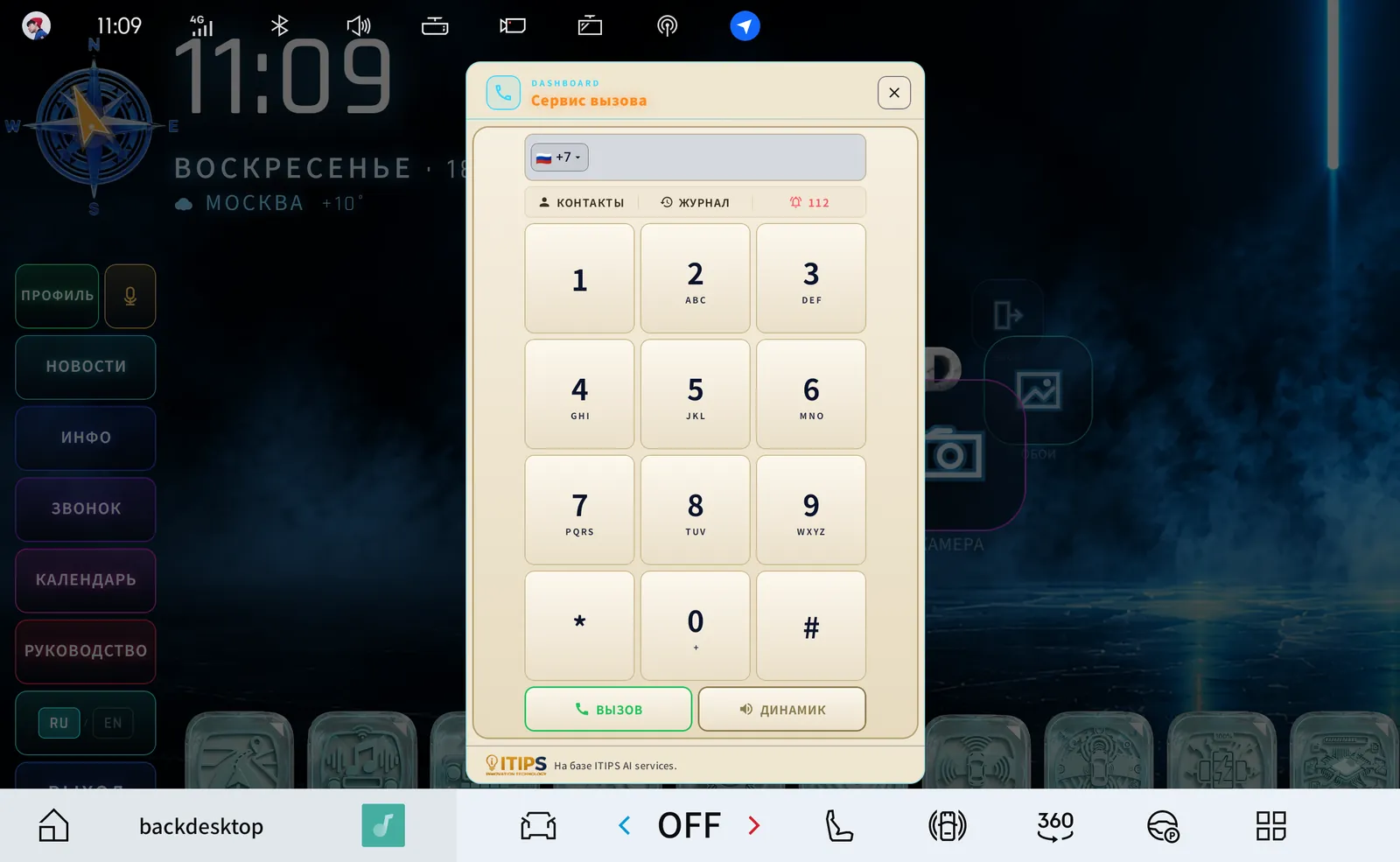
Call service
A full dialer for the car’s phone connection.
How to- Launcher → Call.
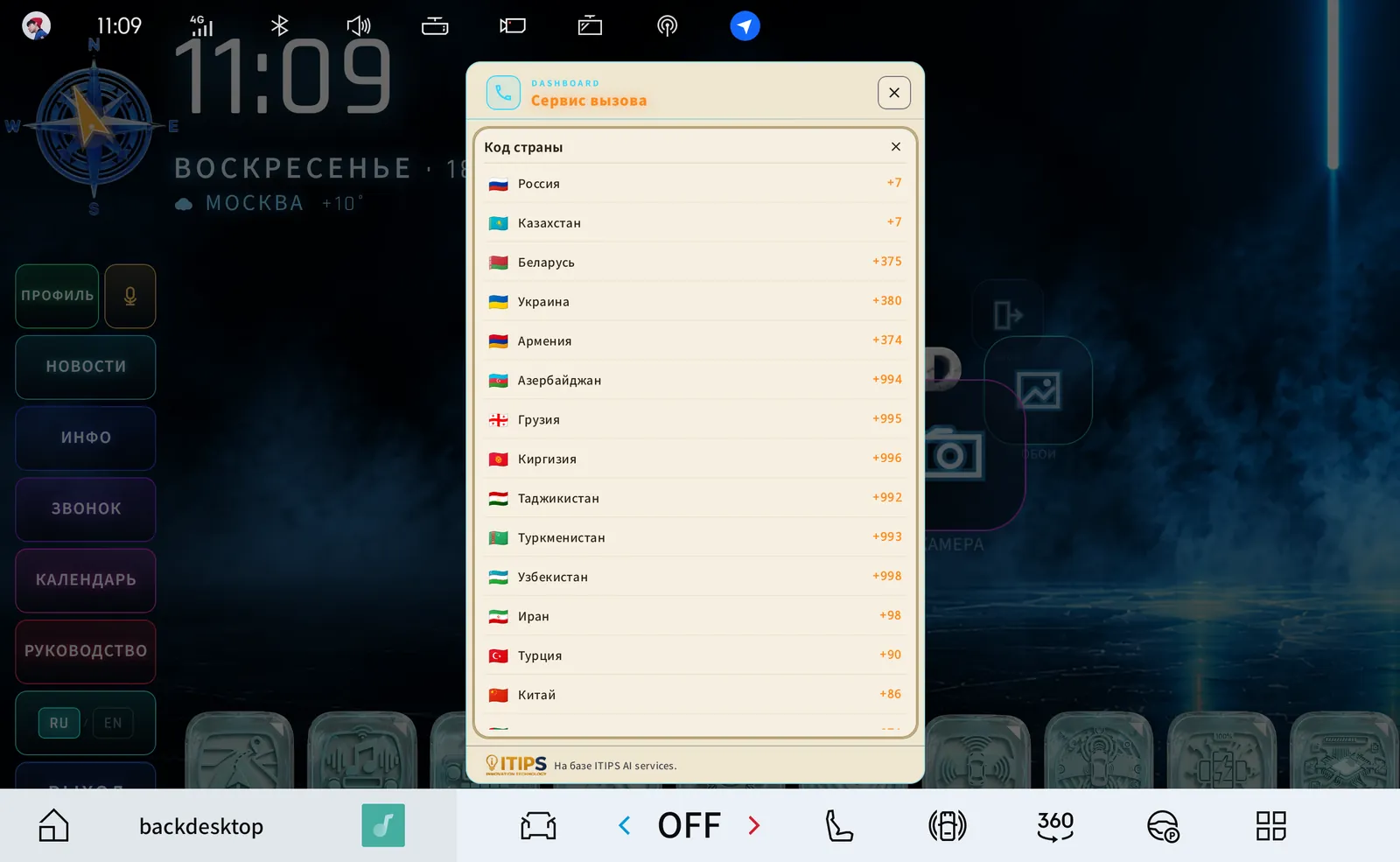
- Tap the country code to change it (Russia +7, Kazakhstan, Belarus …).
- Dial the number — or open Contacts / Journal — and tap Call; Speaker for hands-free.
- In an emergency tap 112.
Info
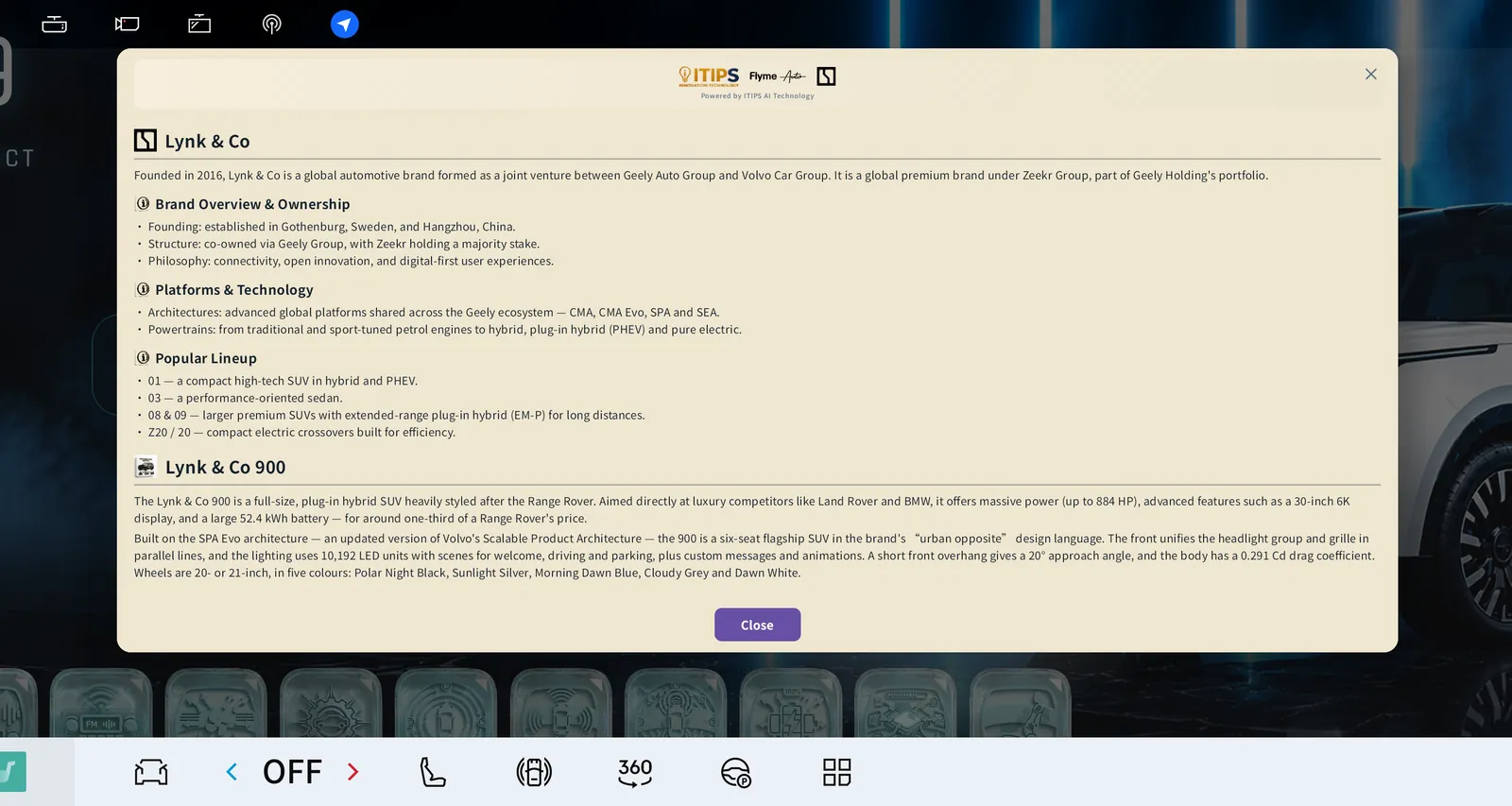
A reference card about Lynk & Co — brand, platforms, line-up — and the Lynk & Co 900. Launcher → Info.
Profile and Manual from the Launcher
Profile and Manual on the left rail open the same profile card and owner’s manual as in the Store — as windows over the home screen.

HUD
Your co-pilot on the glass
HUD
What the HUD shows
DASHBOARD projects its own panel onto the car’s head-up display, alongside the native HUD (it does not replace it). It shows one clear thing at a time:
- Car started: a short intro — ITIPS logo, your car in its colour, DASHBOARD; an optional personal welcome.
- Parked (P): a large clock with the full date.
- Gear change: a short sign for P, R (attention) and D.
- Driving, nothing to warn: a large compass with direction letters and degrees.
- Speed vs limit: the border goes green (legal) → yellow (over) → orange (+10) → red, blinking (+20); “Slow down”, then praise when you are back within the limit.
- Road ahead (15–180 m, within ±35° of your heading): traffic lights, pedestrian crossings, speed bumps, roundabouts — with the distance; “School nearby”.
- Turns: from Yandex Navigator — a turn sign with three orange chevrons and the distance.
- Hard braking / acceleration: an instant gentle sign; a jolt without a speed change shows “Careful!”.
- Traffic jam: after a minute of crawling on a fast road. Speed milestones: 40 / 60 / 80 / 100 km/h.
💡 Speed limits come from Yandex Navigator when it runs; otherwise from your chosen road type or the OpenStreetMap limit. These are speed-limit warnings — not speed-camera alerts.
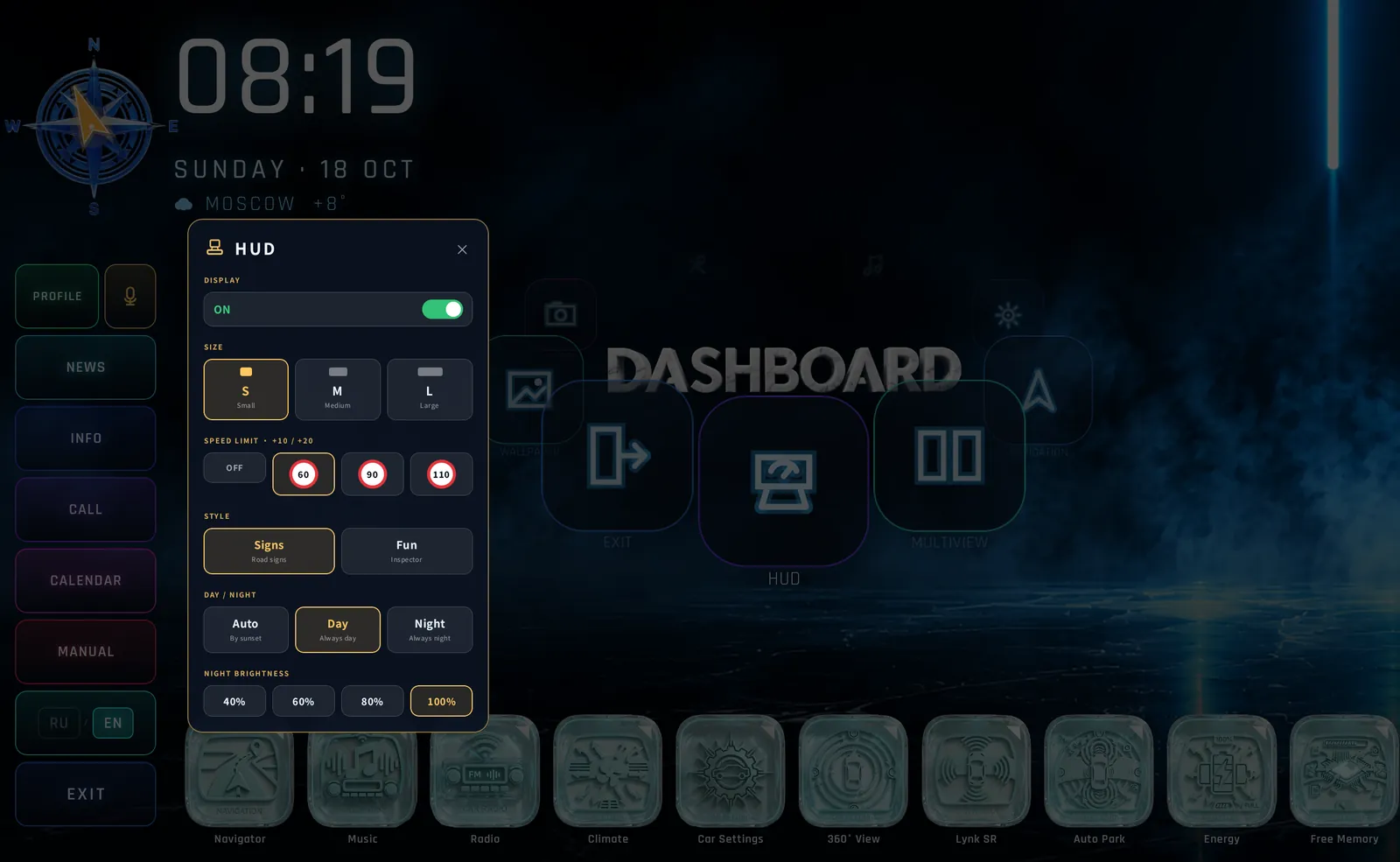
Set up the HUD
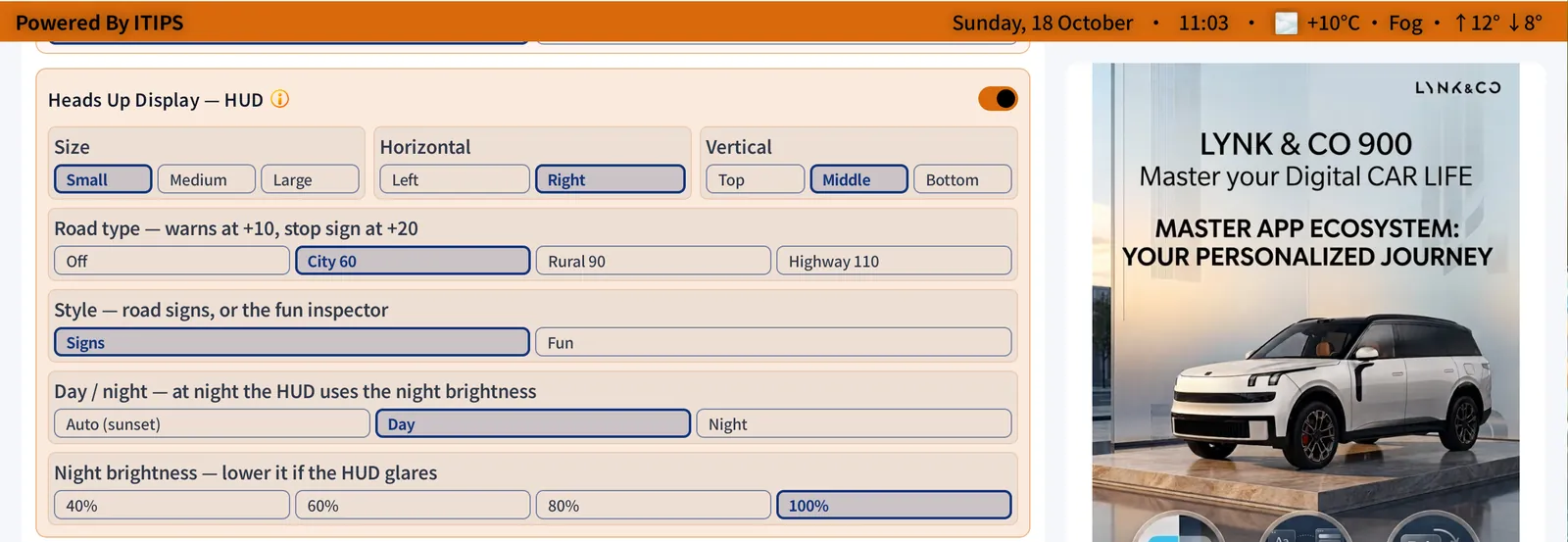
Two places: Launcher → orbit HUD, or Store Settings → Heads Up Display — HUD.
- Display ON / OFF.
- Size Small / Medium / Large.
- Position Left / Right × Top / Middle / Bottom — 6 positions.
- Road type Off / City 60 / Rural 90 / Highway 110 — warns at +10, stop sign at +20.
- Style Signs (neutral road signs) or Fun (the animated “Inspector”).
- Day / Night Auto (by sunset) / Day / Night; Night brightness 40 / 60 / 80 / 100 %.
- The HUD car follows your car’s paint colour.
💡 Day and night are computed from the sun at the car’s GPS position. The HUD runs on its own thread, so opening the Store or the Launcher never freezes it.
⚙
Every option explained
SETTINGS
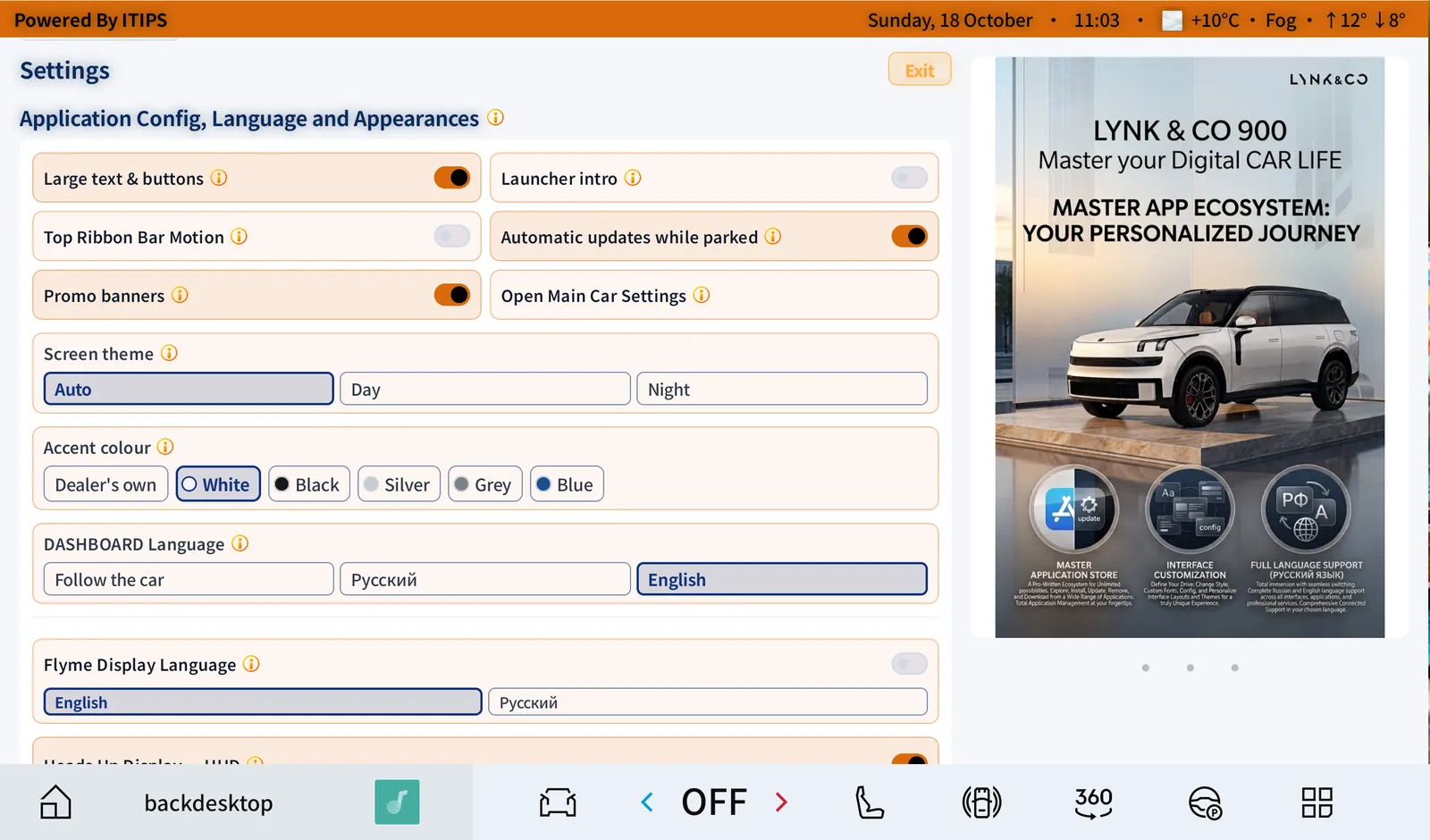
Settings — one scrolling page
Everything is on one scrolling page, in this order. Every heading has an ⓘ — tap it for an explanation.
- Application config, language and appearance: large text & buttons, Launcher intro, top ribbon motion, automatic updates while parked, promo banners, Open Main Car Settings, screen theme, accent colour, DASHBOARD language, Flyme Display Language.
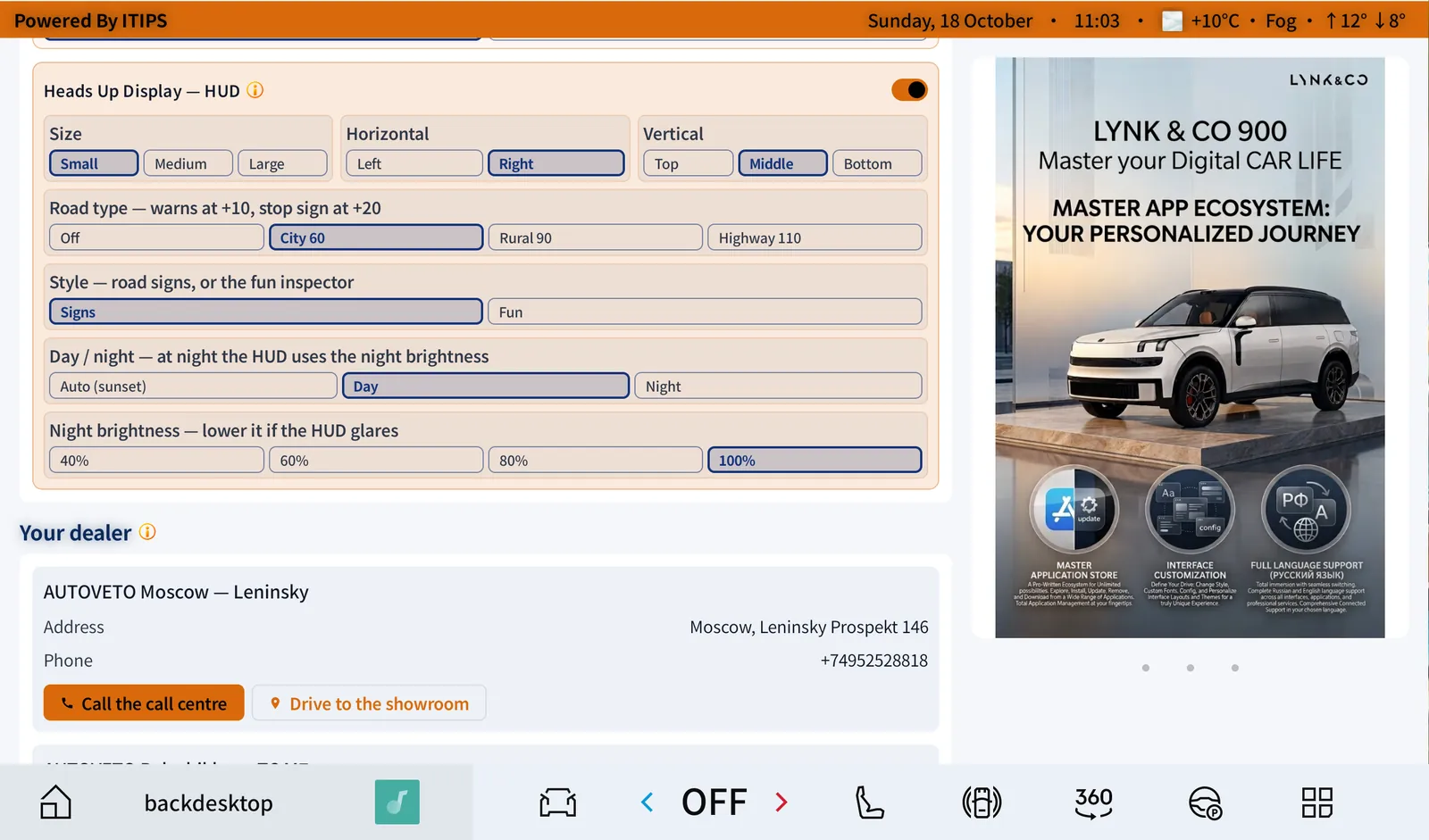
- Heads Up Display — HUD (see HUD).
- Contacts of our service partner AUTOVETO (maintenance / TO): showroom addresses and phones, Call the call centre · Drive to the showroom (the route goes to the navigator).
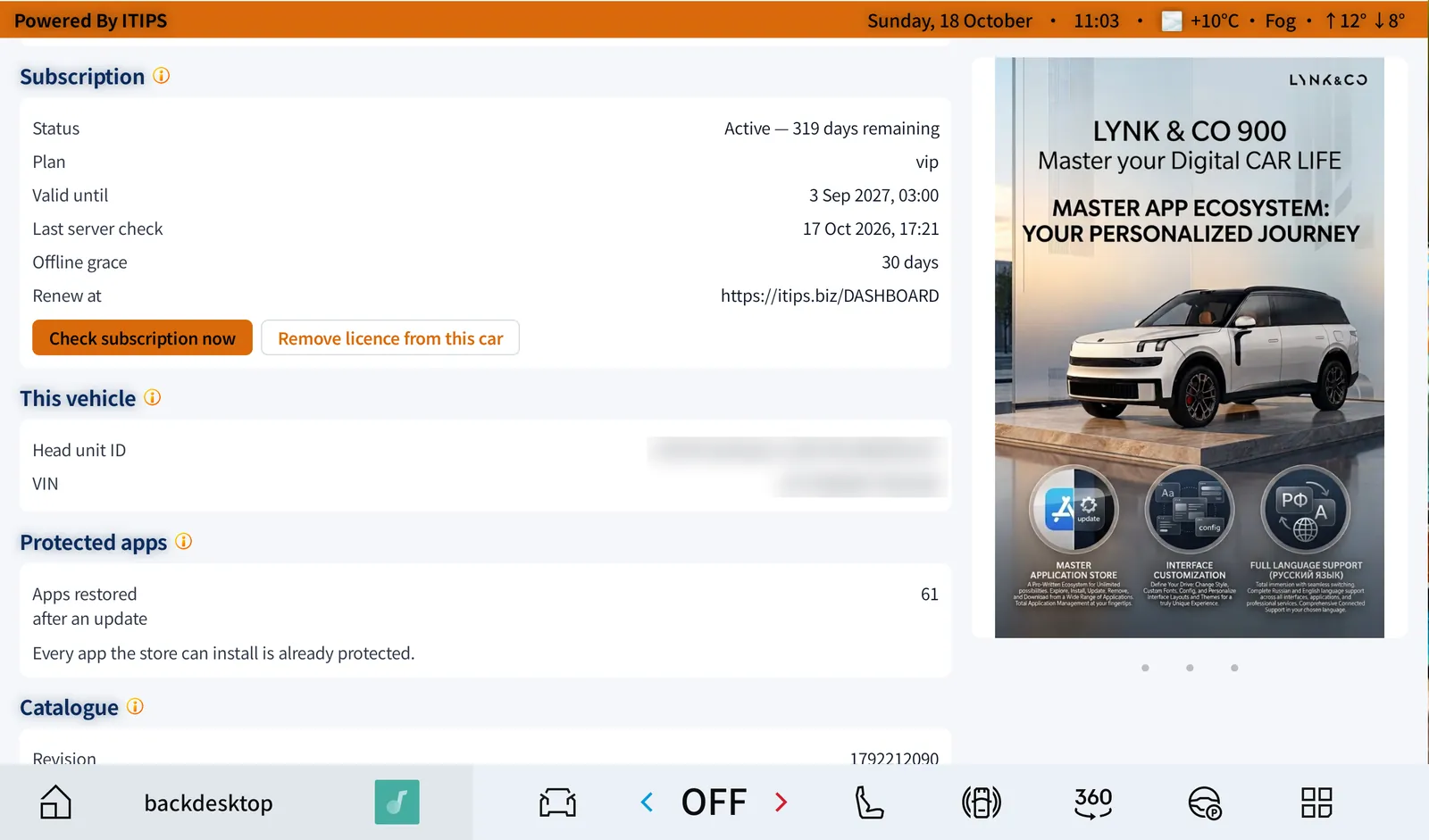
- Subscription: status and days left, plan, valid until, last server check, offline grace (30 days), renew link, Check subscription now, Remove licence from this car.
- This vehicle: head-unit ID and VIN. Protected apps: apps restored automatically after a system update.
- Catalogue: revision, number of apps, Live mode, Refresh catalogue. About: version, build, store updates, launcher status, Check now.
All settings — reference
| Where | Setting | Options |
|---|---|---|
| Main page | Display mode | Full · Compact |
| Main page | Text size | Normal · Large (Aa) |
| Main page | Language | RU · EN |
| Settings → Appearance | DASHBOARD language | Follow the car · Русский · English |
| Settings → Appearance | Flyme Display Language (cockpit translation) | English · Русский |
| Settings → Appearance | Large text & buttons | On · Off |
| Settings → Appearance | Launcher intro | On · Off |
| Settings → Appearance | Promo banners | On · Off |
| Settings → Appearance | Open Main Car Settings | button |
| Settings → Appearance | Top ribbon bar motion | Moving · Static |
| Settings → Appearance | Advertisement card | Rotating · Hold on first slide |
| Settings → Appearance | Accent colour | Dealer’s own · White · Black · Silver · Grey · Blue |
| Settings → Appearance | Screen theme | Auto (follows the car) · Day · Night |
| Settings → Updates | Automatic updates while parked | On · Off |
| Settings → Rear screen | Check rear screen | test (Reachable / Not reachable) |
| Settings → Subscription | Status, plan, valid until, offline grace, check now, remove licence | — |
| App page | Show this app on | Driver · Passenger · Rear screen |
| Multi-view | Multi-view | ON · OFF; Left / Right / Third app; left width 50 / 60 / 70 %; Swap sides |
| Wallpapers | Change automatically | OFF · 30 min · 1 h · 3 h · 12 h · 1 day |
| Wallpapers | Live wallpaper | ON · OFF |
| HUD | Display | ON · OFF |
| HUD | Size | S · M · L |
| HUD | Position | Left · Right × Top · Middle · Bottom |
| HUD | Road type | Off · City 60 · Rural 90 · Highway 110 (warns +10, stop sign +20) |
| HUD | Style | Signs · Fun (Inspector) |
| HUD | Day / Night | Auto (by sunset) · Day · Night |
| HUD | Night brightness | 40 · 60 · 80 · 100 % |
| HUD | Car colour | follows the vehicle colour |
| Launcher rail | Language | RU · EN |
How do I…? — answers
The questions owners ask most, grouped by topic. Each answer links to the full explanation with screenshots.
Nothing found. Try another word — or ask ITIPS on Telegram @BIZ4ITIPS.
Getting started
How do I open DASHBOARD and the Launcher?
Open DASHBOARD from the car’s app list. From its main page (or Compact) tap Launcher for the full-width home screen. On the Launcher, Exit returns to the factory Flyme home.
See: Launcher home screen →
See: Launcher home screen →
How do I switch between Full and Compact?
Main page → Compact. In Compact, tap Full at the top-right to return.
See: Compact mode →
See: Compact mode →
How do I make the text larger?
Tap Aa on the main page; tap again to return. For a permanent change: Settings → Large text & buttons.
See: Main page (Full mode) →
See: Main page (Full mode) →
How do I change the language?
Tap RU / EN on the main page or the Launcher rail. In Settings: DASHBOARD Language (Follow the car · Русский · English) and Flyme Display Language to translate the car’s own menus.
See: Settings — one scrolling page →
See: Settings — one scrolling page →
Apps & screens
How do I install an app?
Find it in the menu or with Search → open its page → Install. It installs silently; then tap Open.
See: App page — install, open, choose the screen →
See: App page — install, open, choose the screen →
How do I choose where an app runs — driver, passenger or rear?
Open the app’s page → Show this app on → Driver, Passenger or Rear screen.
See: App page — install, open, choose the screen →
See: App page — install, open, choose the screen →
How do I send an app to the rear screen?
Turn the rear screen on → Settings → Check rear screen (should be Reachable) → app page → Rear screen.
See: Passenger and rear screens →
See: Passenger and rear screens →
An app has no exit button — how do I close it?
App page → Force close. It closes on the head unit and on the rear screen.
See: App page — install, open, choose the screen →
See: App page — install, open, choose the screen →
How do I remove an app or check free space?
Menu → Storage: free space of total, tabs My apps · Updates · Passenger Apps, and Remove on every app.
See: Storage — space and your apps →
See: Storage — space and your apps →
Multitasking
How do I show two or three apps at once?
Menu → Multi-view → tap a one-tap layout, or Choose your own (Left / Right / Third, left width 50 / 60 / 70 %) → Show 2 apps. Drag the orange divider to resize.
See: Multi-view — 2 or 3 apps on one screen →
See: Multi-view — 2 or 3 apps on one screen →
How do floating windows work in the Launcher?
Open an app from a dock or the orbit → drag the title bar to move it; – minimizes, × closes. Several windows can be open at once.
See: Floating windows →
See: Floating windows →
Launcher services
How do I see the car’s cameras?
Launcher → orbit Camera → Front / Rear / Left / Right / Driver / Dashcam; ‹ › to switch, – / + to zoom; 360 Mix for all four at once.
See: Cameras — single, 360 Mix, Dashcam, Driver →
See: Cameras — single, 360 Mix, Dashcam, Driver →
How do I open car settings next to navigation?
Launcher driver dock → Car Settings, Energy, Climate, Seat, Auto Park, 360° View or Lynk SR — each opens as a window.
See: Car settings, Energy, Lynk SR in windows →
See: Car settings, Energy, Lynk SR in windows →
How do I add a reminder?
Launcher → Calendar → pick a day → + Reminder.
See: Calendar & reminders →
See: Calendar & reminders →
How do I make a call?
Launcher → Call → country code → number → Call. For emergencies tap 112. Or say «Позвони …».
See: Call service →
See: Call service →
How do I go back to the factory home screen?
Launcher → Exit (bottom of the left rail). Nothing is lost; open the Launcher again any time.
See: Launcher home screen →
See: Launcher home screen →
What voice commands can I use?
Tap the mic and say «Что ты умеешь?» / “What can you do?” — DASHBOARD lists them: calls, routes, opening apps, calendar, wallpapers, settings and more. It works offline.
See: Voice — offline, Russian and English →
See: Voice — offline, Russian and English →
HUD & compass
How do I set up the HUD?
Launcher → orbit HUD, or Store Settings → Heads Up Display — HUD: Display, Size, Position, Road type, Style, Day / Night, Night brightness.
See: Set up the HUD →
See: Set up the HUD →
What do the HUD colours mean?
Green — within the limit; yellow — over the limit; orange — more than +10; red, blinking — more than +20 (the fine zone).
See: What the HUD shows →
See: What the HUD shows →
The HUD is too bright at night.
Lower Night brightness (40 / 60 / 80 / 100 %). Day / Night Auto switches by sunset at the car’s position.
See: Set up the HUD →
See: Set up the HUD →
The compass shows no arrow.
Normal after installation: drive forward a few hundred metres above about 10 km/h. Then it remembers the last direction when parked. It cannot work in an underground car park before the first drive.
See: Live compass →
See: Live compass →
Wallpapers & look
How do I change the wallpaper?
Menu → Wallpapers → category → Set as wallpaper; or Launcher → orbit Wallpaper; or say «обои».
See: Wallpapers — 420+ designs, 22 live →
See: Wallpapers — 420+ designs, 22 live →
How do I make the wallpaper change automatically?
Wallpapers → Change wallpaper automatically → 30 min, 1 h, 3 h, 12 h or 1 day (VIP).
See: Wallpapers — 420+ designs, 22 live →
See: Wallpapers — 420+ designs, 22 live →
How do I set a live wallpaper?
Wallpapers → Live → pick one → switch Live wallpaper ON (VIP).
See: Wallpapers — 420+ designs, 22 live →
See: Wallpapers — 420+ designs, 22 live →
How do I change the theme or accent colour?
Settings → Screen theme (Auto · Day · Night) and Accent colour.
See: Settings — one scrolling page →
See: Settings — one scrolling page →
Speed & troubleshooting
The head unit feels slow.
Tap Free up memory (Storage page, Compact bar or Launcher dock). It closes background apps and shows how much memory it recovered.
See: Free up memory →
See: Free up memory →
An app closes by itself or won’t start.
App page → hold Advanced 3 s → Troubleshoot. Try Grant permissions + keep alive, then Install for all profiles, then Reinstall clean.
See: App Doctor & Troubleshoot →
See: App Doctor & Troubleshoot →
What is the Doctor card on the main page?
App Doctor found catalogue apps installed from a foreign source, a modified build, or a foreign version that blocks updates. Tap Repair — the app is reinstalled from the verified DASHBOARD copy.
See: App Doctor & Troubleshoot →
See: App Doctor & Troubleshoot →
How do I send a crash report?
App page → hold Advanced → Send crash report. It records 25 seconds of diagnostics and sends them securely to ITIPS support.
See: App Doctor & Troubleshoot →
See: App Doctor & Troubleshoot →
The DASHBOARD or Launcher icon is missing from the app folder.
Restart the head unit once — the Flyme app list refreshes.
See: Launcher home screen →
See: Launcher home screen →
Some car panels show Chinese text.
Settings → Flyme Display Language → Русский or English. The live translation layer covers the car’s own menus.
See: Settings — one scrolling page →
See: Settings — one scrolling page →
Updates & membership
How do I update DASHBOARD and the Launcher?
Automatically, over the air. To check right now: Settings → About → Check now / Update launcher.
See: Updates — over the air →
See: Updates — over the air →
Where do I see my subscription?
Settings → Subscription: status and days left, plan, valid until, offline grace (30 days), Check subscription now. Your Profile also shows membership days.
See: Settings — one scrolling page →
See: Settings — one scrolling page →
Does it work without internet?
Yes — DASHBOARD, the HUD, the compass and offline voice keep working; the licence has 30 days of offline grace. Updates, new apps and the catalogue need a connection at some point.
See: Settings — one scrolling page →
See: Settings — one scrolling page →
How do I read the owner’s manual?
Menu → Owner’s manual → chapter → topic; EN / RU, search and light / dark at the top.
See: Owner’s manual — 16 chapters, EN ⇄ RU →
See: Owner’s manual — 16 chapters, EN ⇄ RU →
Where do I book maintenance (TO)?
Our service partner for maintenance is AUTOVETO. In Settings → Contacts you find their showrooms with addresses and phones: Call the call centre, or Drive to the showroom — the route goes straight to the navigator. You can also say «Позвони дилеру». Your Profile shows the next service (every 10 000 km / 1 year, reminder 500 km before).
See: Settings — one scrolling page →
See: Settings — one scrolling page →
How do I get help from a person?
Telegram @BIZ4ITIPS · WhatsApp +7 985 577-17-90 · info@itips.biz. For an app problem, send a crash report first — it reaches ITIPS support directly.
Still stuck? Ask a person.
ITIPS support answers in Russian and English. For an app problem, send a crash report from the app’s Advanced menu first — it reaches us directly.
📘 DASHBOARD Guide · Store 2.1.64 · Launcher 0.48 · 2026-10-18 · ITIPS